Add Revdoku to Claude Web or Claude Desktop
These steps add Revdoku as a custom connector in Claude in a browser or in the Claude desktop app. The steps are the same in both. You need a Revdoku account and a Claude account. To find out which Claude plans can add a custom connector, read Claude plans that can add Revdoku.
-
Create a mailbox. Sign up with Google, GitHub or your email address. Revdoku creates your first mailbox when you sign up.
-
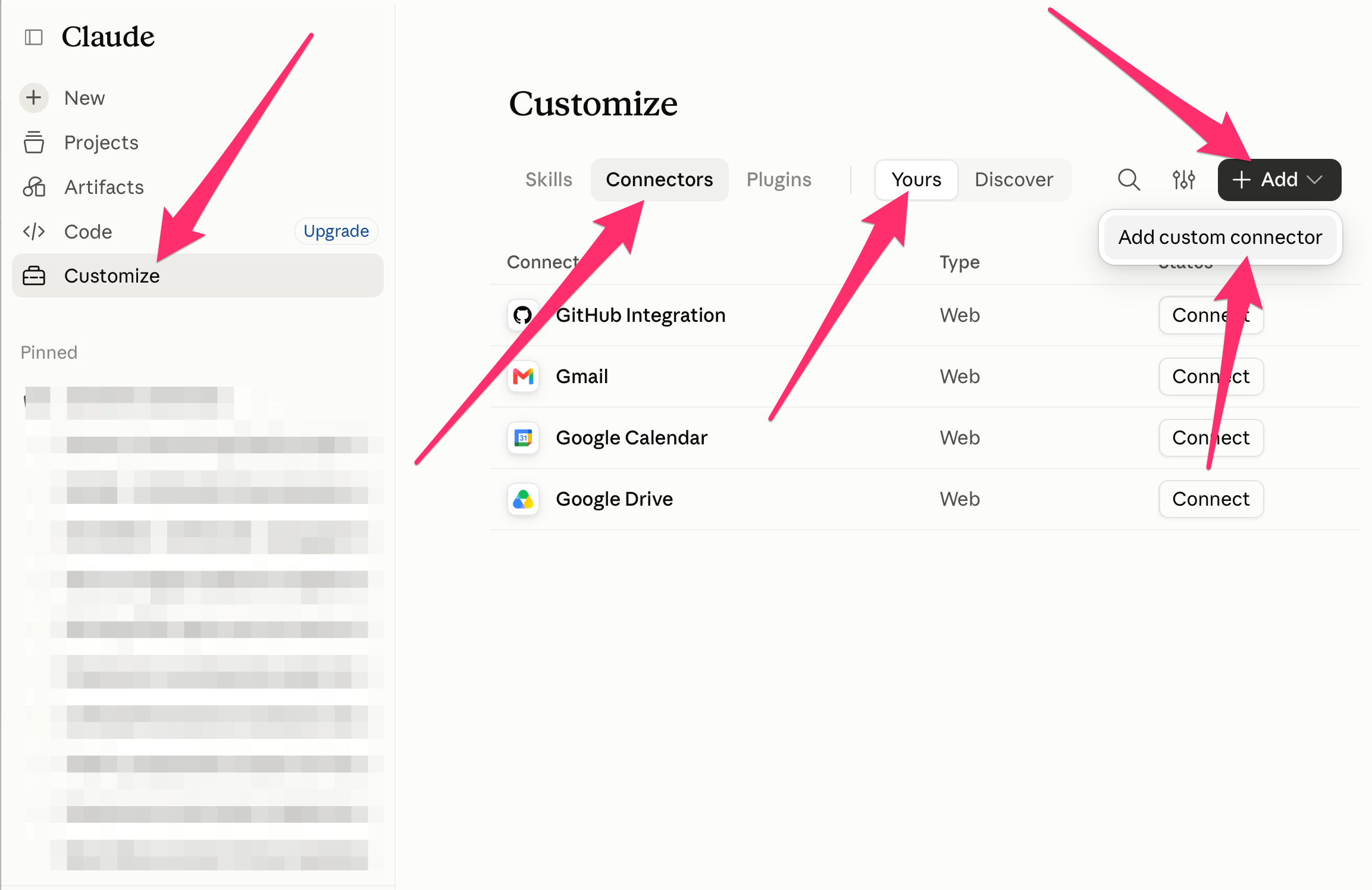
In Claude, open Customize → Connectors → Yours. Click + Add → Add custom connector.
-
Type
Revdokuas the name andhttps://mcp.revdoku.comas the URL. Click Continue.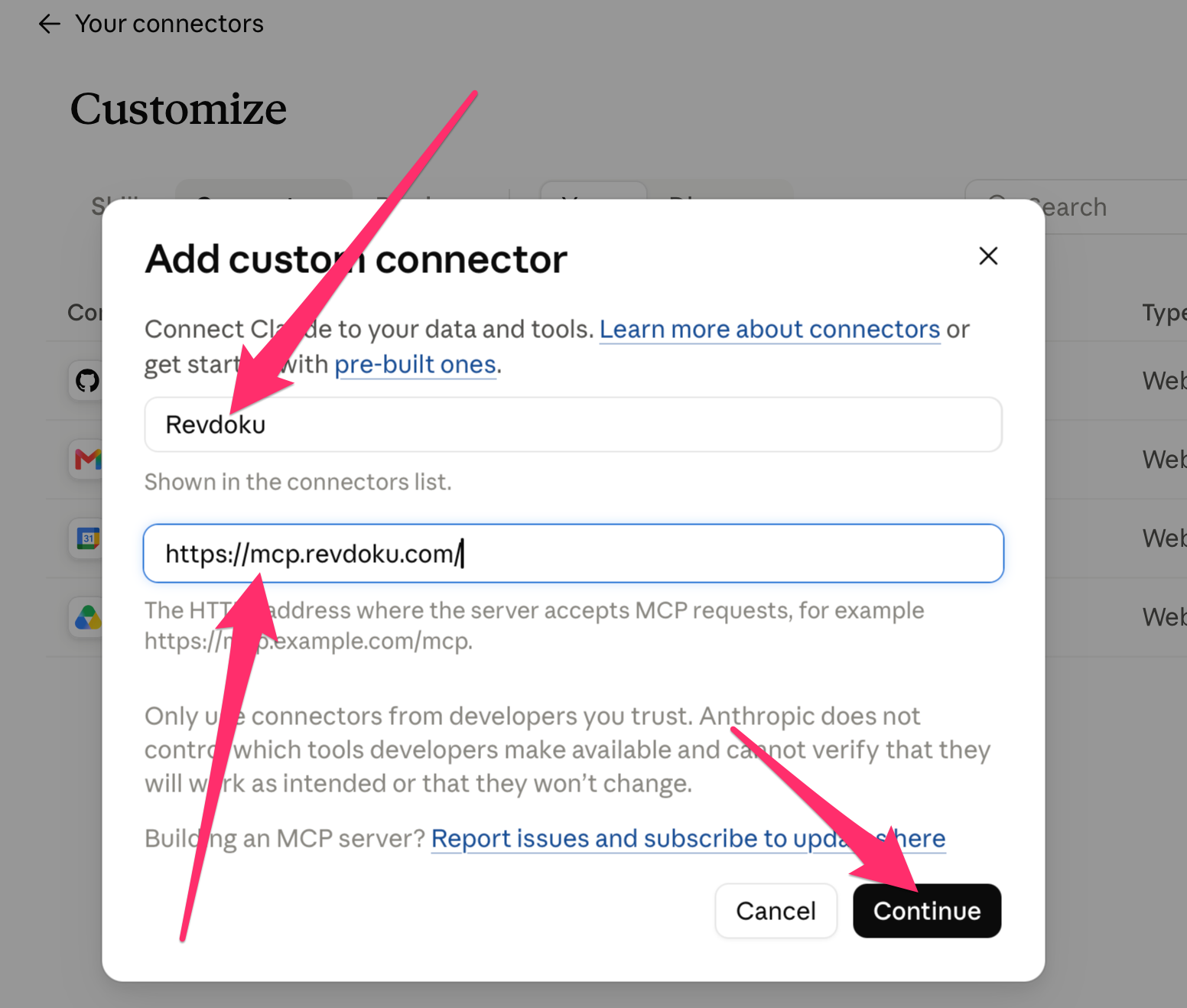
-
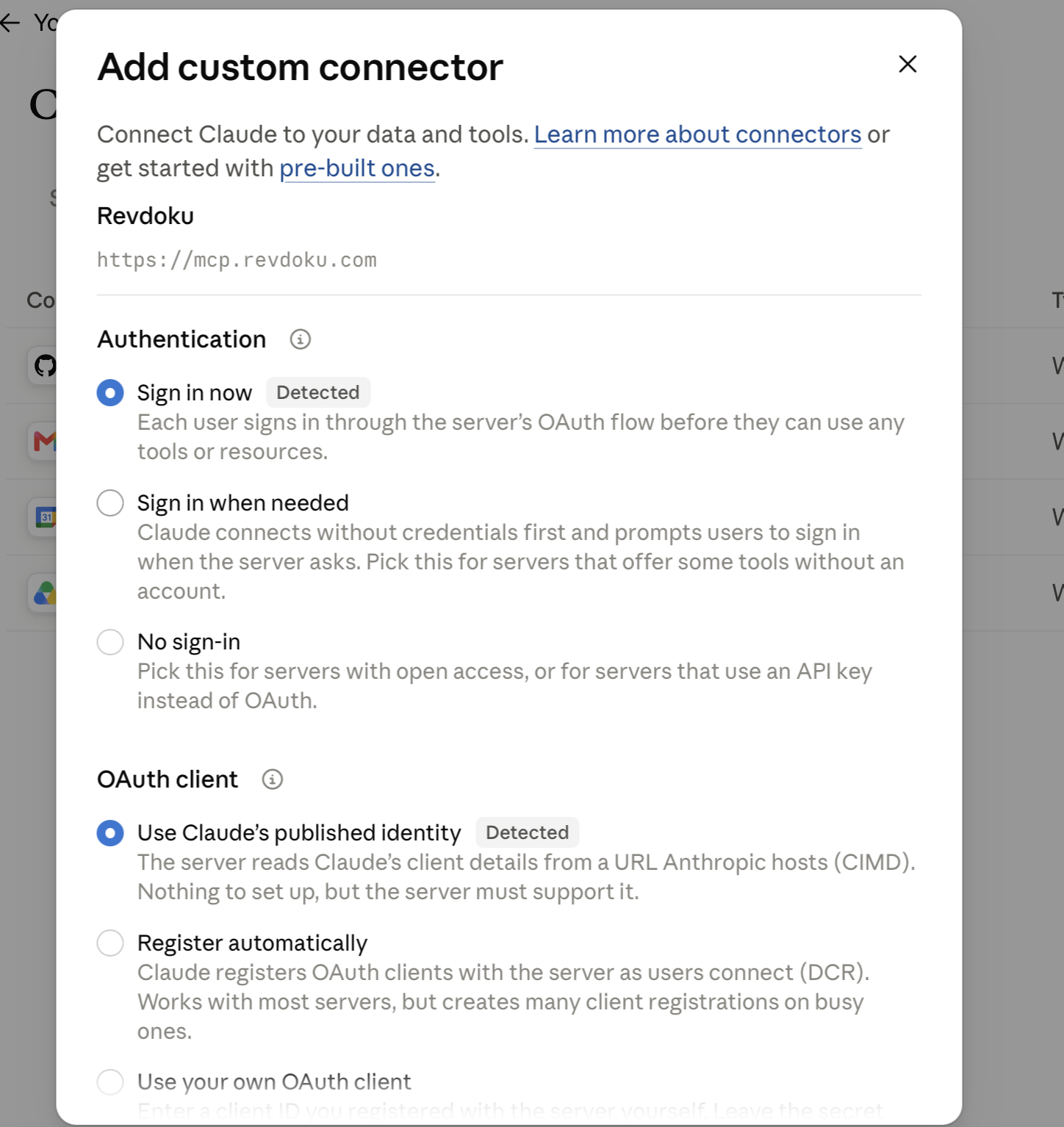
Under Authentication, make sure that Sign in now is selected. Under OAuth client, make sure that Use Claude’s published identity is selected.
Claude marks both values as Detected for Revdoku. If Claude selects No sign-in, change it to Sign in now. Register automatically also works. Leave the client ID and secret fields empty.
-
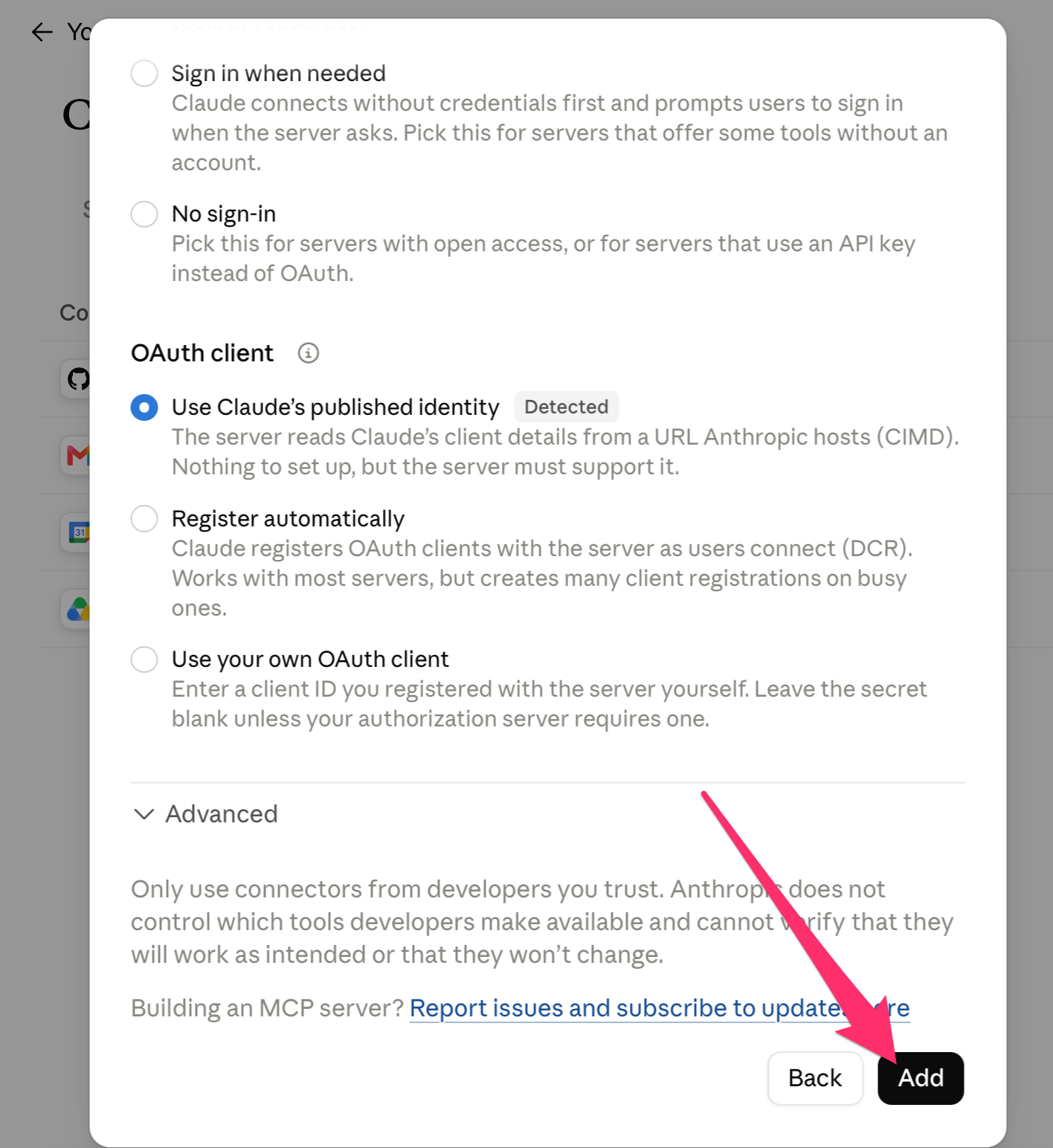
Scroll down and click Add.
-
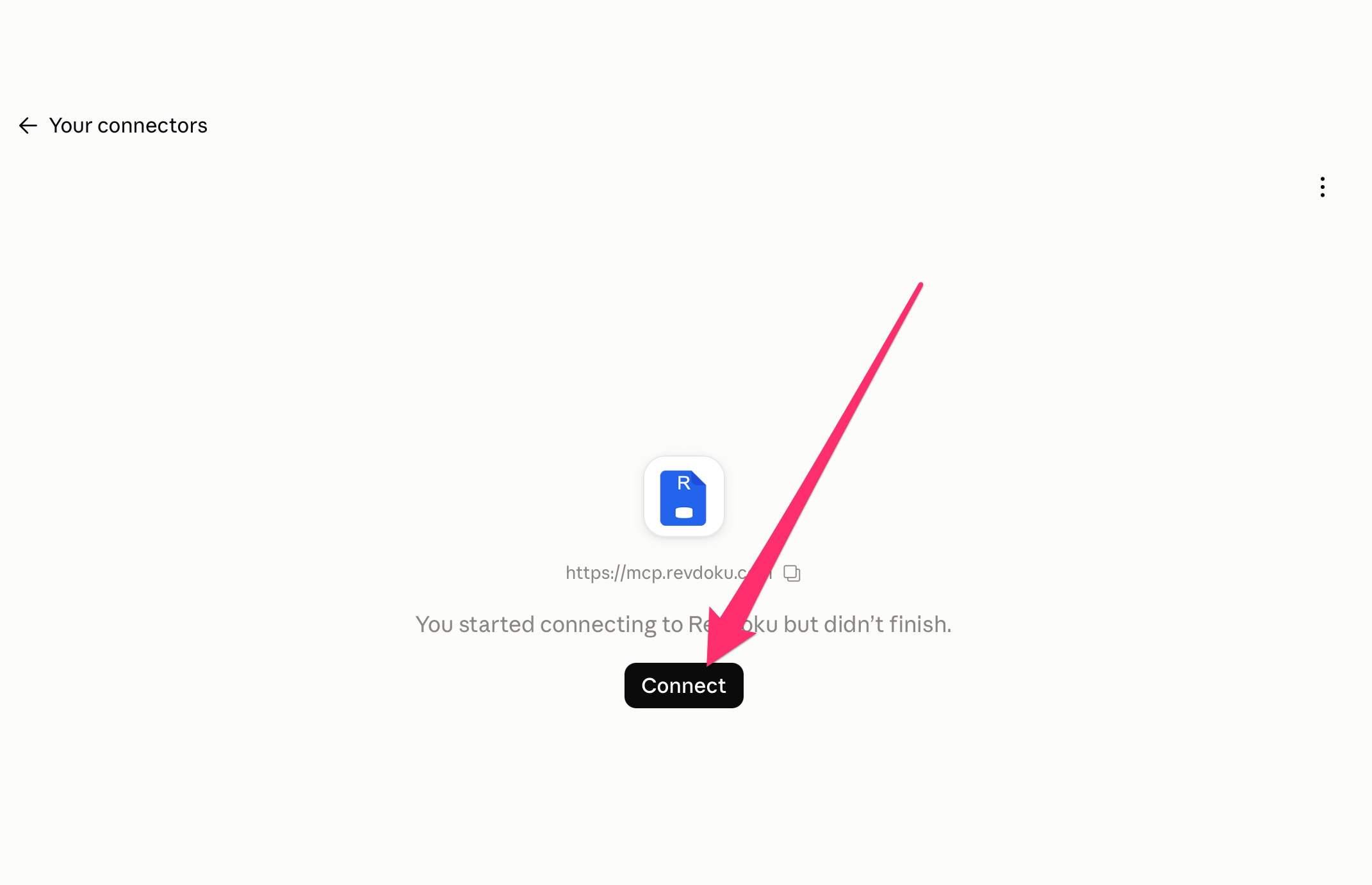
If Claude shows a Connect button, click it.
-
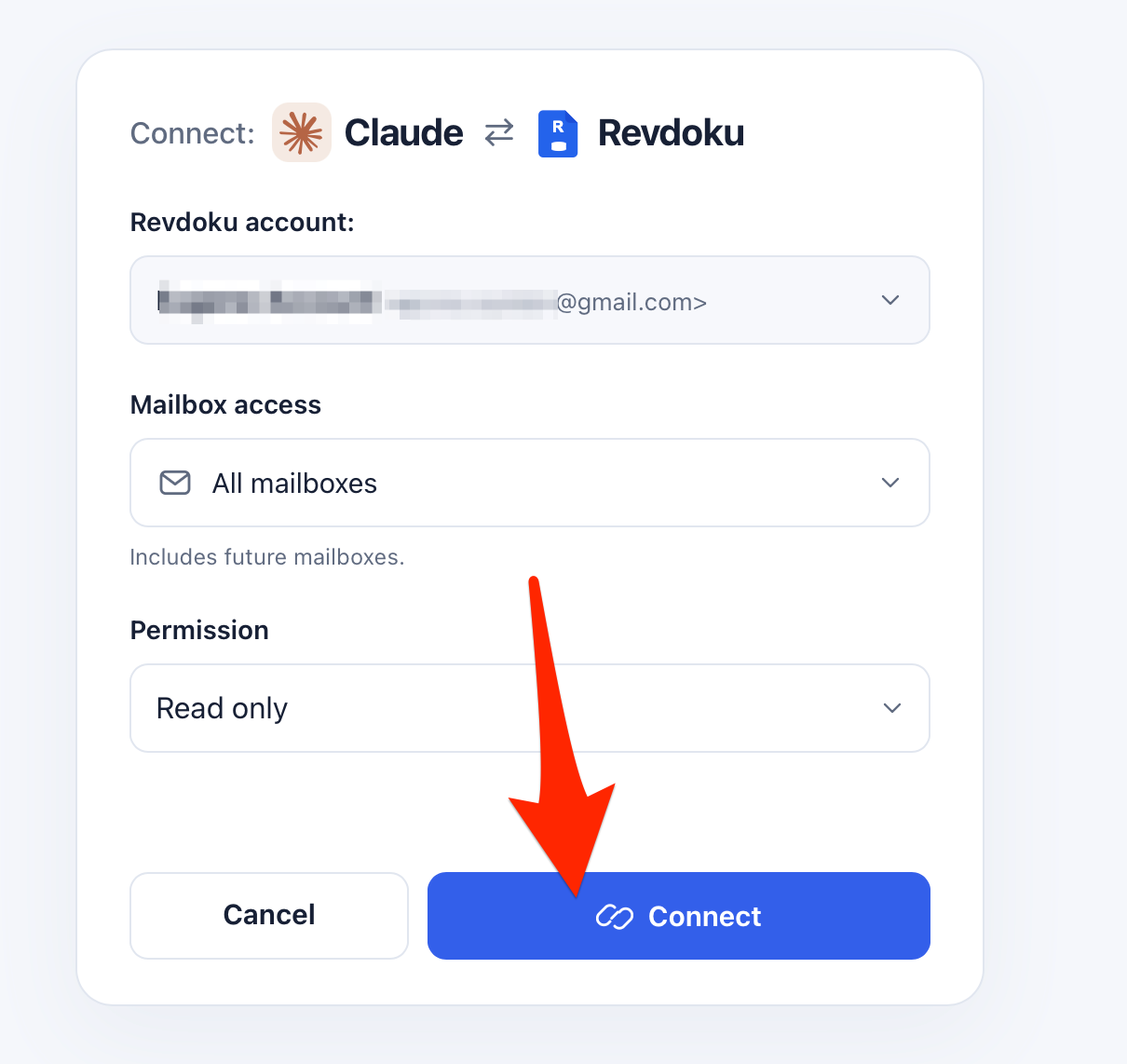
If Revdoku asks, sign in. Select your Revdoku account and the mailboxes that Claude can use. Under Permission, select Read & write. Click Connect.
All mailboxes also includes the mailboxes that you create later. With Read & write, Claude can show the mailbox address and reply to email. The screenshot shows Read only, which hides the address. The access levels explain each choice.
-
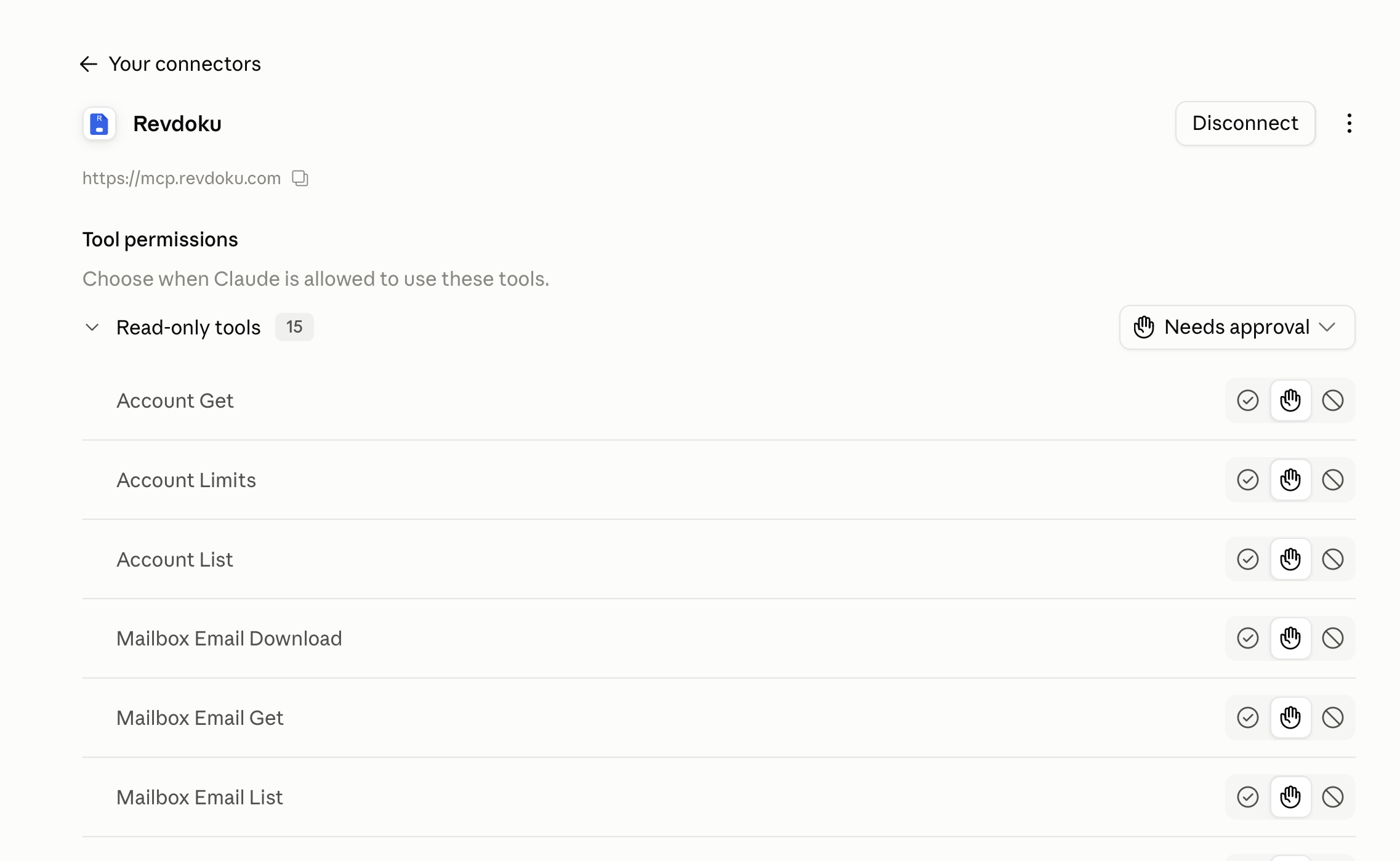
Back in Claude, make sure that the Revdoku page shows Tool permissions and a Disconnect button.
-
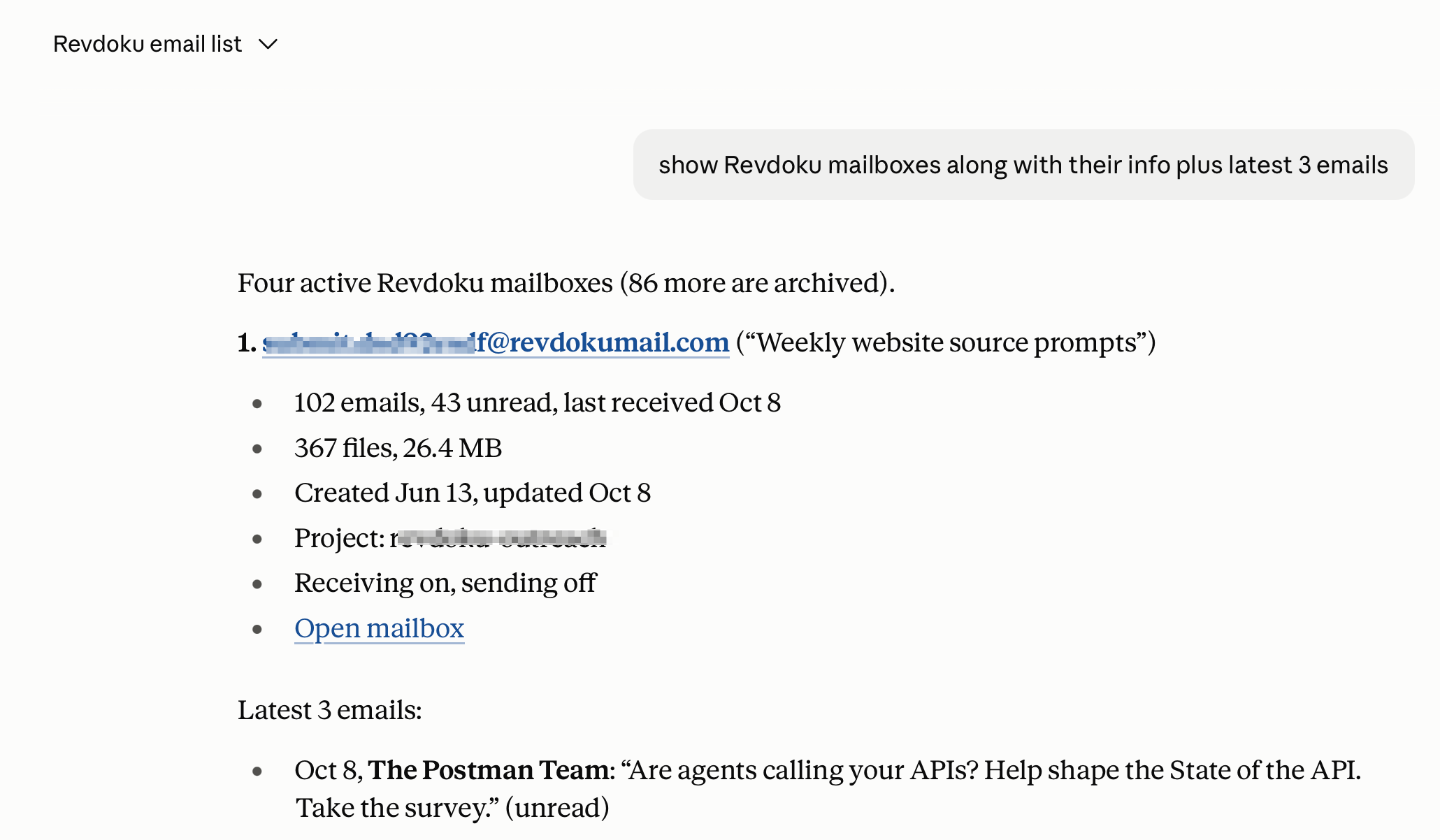
Open a new chat. Click + → Connectors and turn on Revdoku. Then ask:
Show my Revdoku mailboxes and the latest three emails in each.When Claude asks for permission, approve the mailbox and email reads.
-
From your usual email app, send a test message with a file to your mailbox address. Then ask Claude to read that message.
A web connector, not a desktop extension
Claude Desktop has two kinds of connectors. A desktop extension runs on your computer and works with local files or apps. A web connector (also called a remote connector) is a cloud service that you sign in to. Revdoku is a web connector. You do not install an extension or edit a configuration file in Claude Desktop. After you connect Revdoku in one Claude app, it works in the other Claude apps without more setup.
Add Revdoku for a Team or Enterprise organization
On Team and Enterprise plans, an Owner or Primary Owner adds the connector once for all members:
- Open Organization settings → Connectors.
- Click Add, point to Custom and select Web.
- Do steps 3 to 5 above.
Each member then opens Customize → Connectors, finds Revdoku and clicks Connect. Next, each member does steps 7 to 9 with their own Revdoku sign-in.
If the connector does not work
- If Claude shows an error for a saved connector, open Revdoku Account → Access and click Reconnect Claude.
- If you must change the name or the URL, remove the connector in Claude. Then add it again.
- If a chat does not show the Revdoku tools, turn on Revdoku under + → Connectors in that chat.
 Claude Help Center: custom connectors · Claude with a mailbox · Revdoku MCP guide · Use cases
Email for use by your
AI apps and agents
Receive emails, send replies, store attachments.
Designed for quick integration into your workflow.
- 3 free mailboxes
- 3,000 emails in, 500 out a month
- 3 GB of file storage
- Malware and prompt-injection filter
- API, MCP and CLI access