What is Omarchy and how can I use it?
Table of Contents
- What is Omarchy?
- Agentic: make your own themes, plugins and apps with AI agents
- When to use Omarchy
- Retro games
- RAM for the VM
- What the VM shares with your Mac
- When not to use Omarchy
- Preinstalled commercial apps (bloatware)
- How to try Omarchy on a Mac
- Passwordless sudo
- Omarchy keyboard shortcuts (hotkeys)
- The Omarchy menu
- Virtual desktops
- btop
- Omarchy status bar widgets
- Display
- Audio
- Stay awake
- Weather
- Network
- Power
- AI agent limits
- Screen recording
- Apps that come with Omarchy
- Chromium extensions
- Give the AI agent in Omarchy its own accounts
- What is Omarchy?
- Agentic: make your own themes, plugins and apps with AI agents
- When to use Omarchy
- Retro games
- RAM for the VM
- What the VM shares with your Mac
- When not to use Omarchy
- Preinstalled commercial apps (bloatware)
- How to try Omarchy on a Mac
- Passwordless sudo
- Omarchy keyboard shortcuts (hotkeys)
- The Omarchy menu
- Virtual desktops
- btop
- Omarchy status bar widgets
- Display
- Audio
- Stay awake
- Weather
- Network
- Power
- AI agent limits
- Screen recording
- Apps that come with Omarchy
- Chromium extensions
- Give the AI agent in Omarchy its own accounts
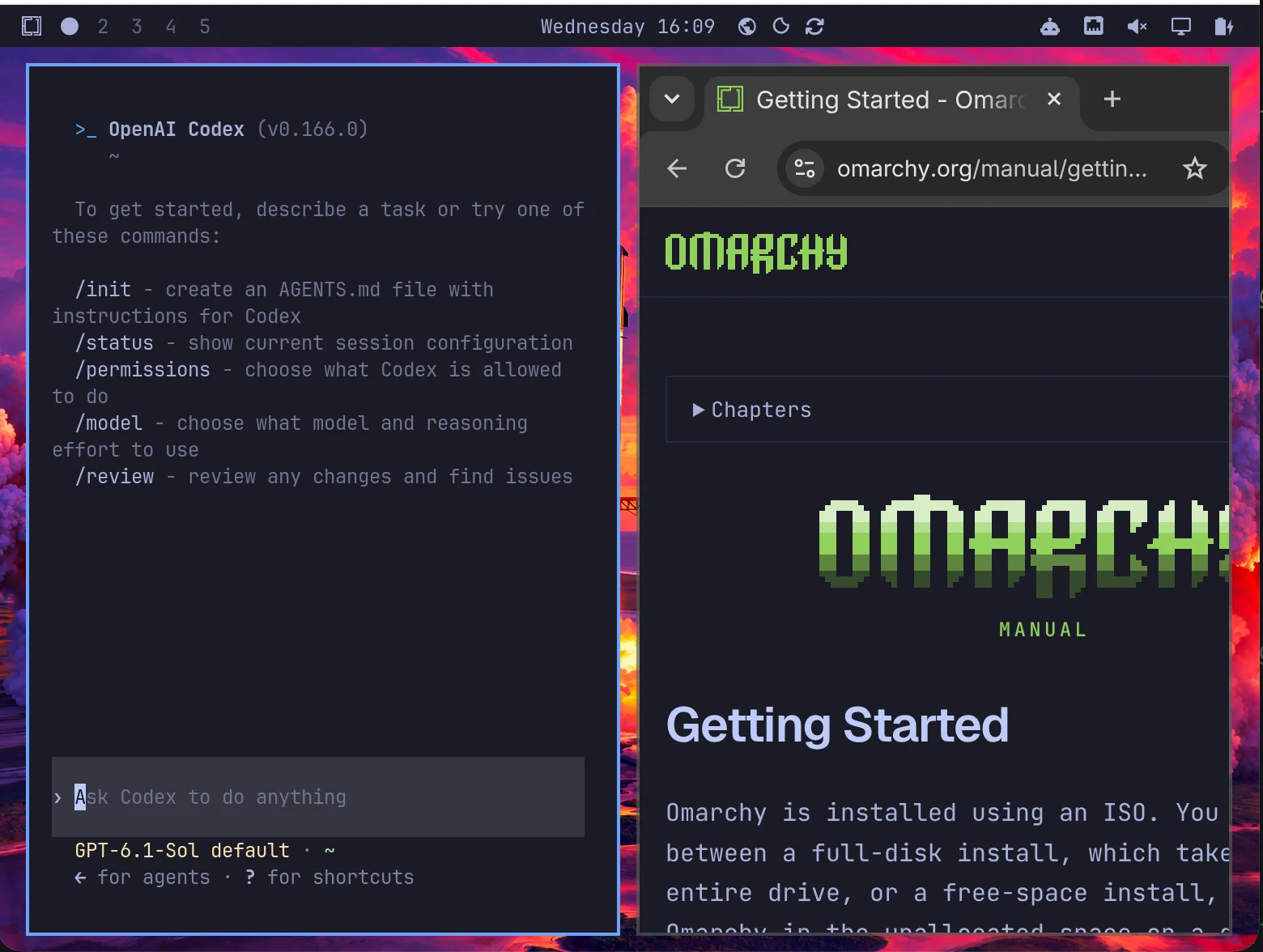
Omarchy is a Linux desktop for developers who work with AI agents such as Claude Code and Codex. Omarchy is based on Arch Linux, a Linux distribution (an operating system based on Linux). Some Linux experts say that Omarchy is only an install script for Arch Linux, not a separate distribution. You can install it on a computer, for example an old laptop, or you can try it in a virtual machine (VM) on a Mac. A VM is a computer that runs as an app on your computer. This article tells what Omarchy includes, when to use it and how to try Omarchy on a Mac. All screenshots show Omarchy in a VM on a MacBook.
What is Omarchy?
Omarchy is a ready-to-use Linux desktop. Its site calls it “the malleable OS for the age of agents.” David Heinemeier Hansson (DHH) made it. Omarchy uses Hyprland, a window manager that puts windows side by side.
Omarchy is made to run well on old hardware. The main idea is that you can easily use an old computer again, such as a ThinkPad X220, a ThinkPad X230 or a similar laptop. Like many other Linux distributions, Omarchy does not need a new CPU, a new graphics card (GPU) or much RAM. The CPUs in these old laptops still have enough power for it. Use a computer with 4 GB of RAM or more.
Users report that Omarchy runs on these old computers:
- ThinkPad: E40 (2010), X220 (2011), X230 (2012), T470 (2017), T480 (2018)
- Apple: MacBook (2007), MacBook Pro (2009 to 2017), MacBook Air (2017), Mac mini (2012), Mac Pro (2013)
- Other laptops: Toshiba Satellite A665 (2010), Asus Zenbook (2013), HP Pavilion (2014), Dell XPS 15 9560 (2017), Dell XPS 13 9370 (2018)
- Mini PCs: Intel NUC, Beelink SER8 and SER9, Minisforum X500
The Omarchy Workstations gallery shows photos of many of these computers and other setups. Very old computers can fail: a ThinkPad X60 from 2006 did not start Omarchy, because its graphics were too weak. There is no official Omarchy for iPad.
After the installation, you get:
- Chromium as the default browser. Chromium is the open-source browser that Google Chrome is built on.
- Launchers for Claude Code, Codex and more than 20 other AI coding agents. Each agent installs the first time you open it.
- A notification that asks you to choose a default agent.
- A status bar at the top of the screen, with widgets for the display, audio, network, power and AI agent limits.
- Apps for development and daily work, for example the Neovim editor, two terminals and LibreOffice.
Agentic: make your own themes, plugins and apps with AI agents
Another promise of Omarchy is that it is “agentic”. The Omarchy GitHub page calls it “a beautiful, fun & agentic Linux distribution”. Agentic means that Omarchy has shortcuts and features that help you make and start your own custom apps with AI agents. Some people call this “vibe coding”: you tell an AI agent what you want, and the agent writes the code.
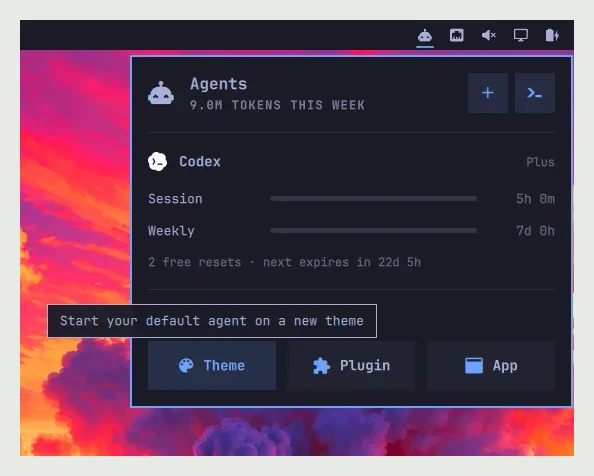
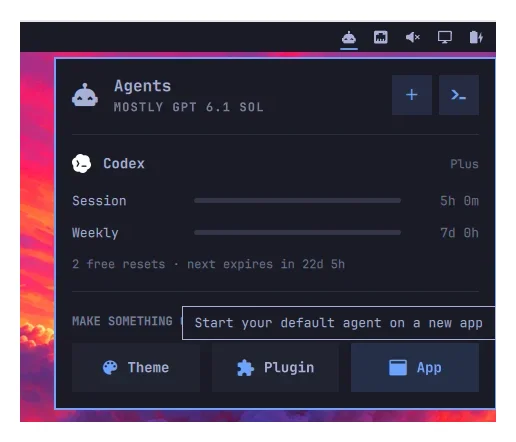
For example, the agents widget in the status bar has three buttons under Make something cool:
- Theme starts your default agent on a new theme for Omarchy.
- Plugin starts your default agent on a new plugin.
- App starts your default agent on a new app.
Each button runs your default AI coding agent, for example Claude Code, Codex or Gemini CLI, with a predefined prompt (a ready-made instruction for the agent).
When to use Omarchy
Use Omarchy when:
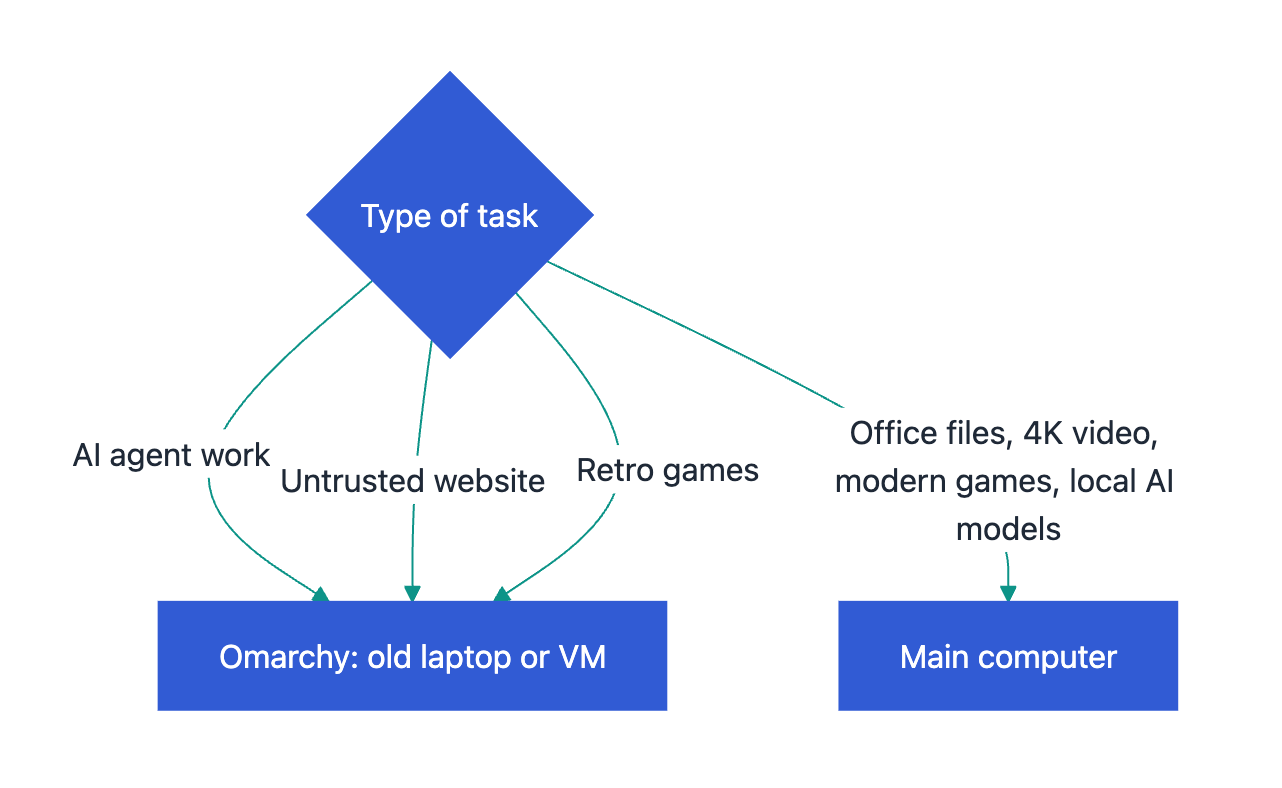
- You have an old laptop or a spare computer with 4 GB of RAM or more, such as a ThinkPad X220 or X230.
- You want AI agents to work on a separate machine. The agent works with the files and accounts on that machine, not with those on your main computer. In a VM, some items are shared (see below). If something goes wrong, you can remove the VM and make a new one.
- You want a separate machine to open websites that you do not trust.
- You want to play retro games (games for old game consoles and computers).
- You want a simple desktop with few settings, so that you can focus on development.
Where to run a task:
Retro games
Omarchy can install RetroArch, an app with emulators for the classic game consoles. An emulator is a program that acts as a different computer or game console. Most retro games need little computing power, so an old laptop can run them.
To set up RetroArch:
- Open the Omarchy menu (Cmd+Space on a Mac, Win+Space on a PC).
- Select Install > Gaming > RetroArch.
- Put your game files (ROMs) in the
~/Games/romsfolder. Put the BIOS files of the consoles in the~/Games/biosfolder. - Open RetroArch and scan the
~/Games/romsfolder.
Use only game files that you have the right to use. RetroArch comes with the CRT Royale shader, which makes games look as on an old TV screen. The Install > Gaming menu can also install Steam, Minecraft and support for Xbox controllers. The Omarchy gaming page gives all options.
RAM for the VM
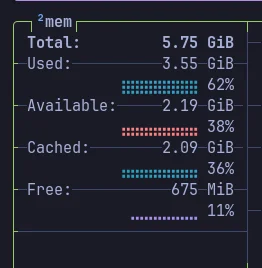
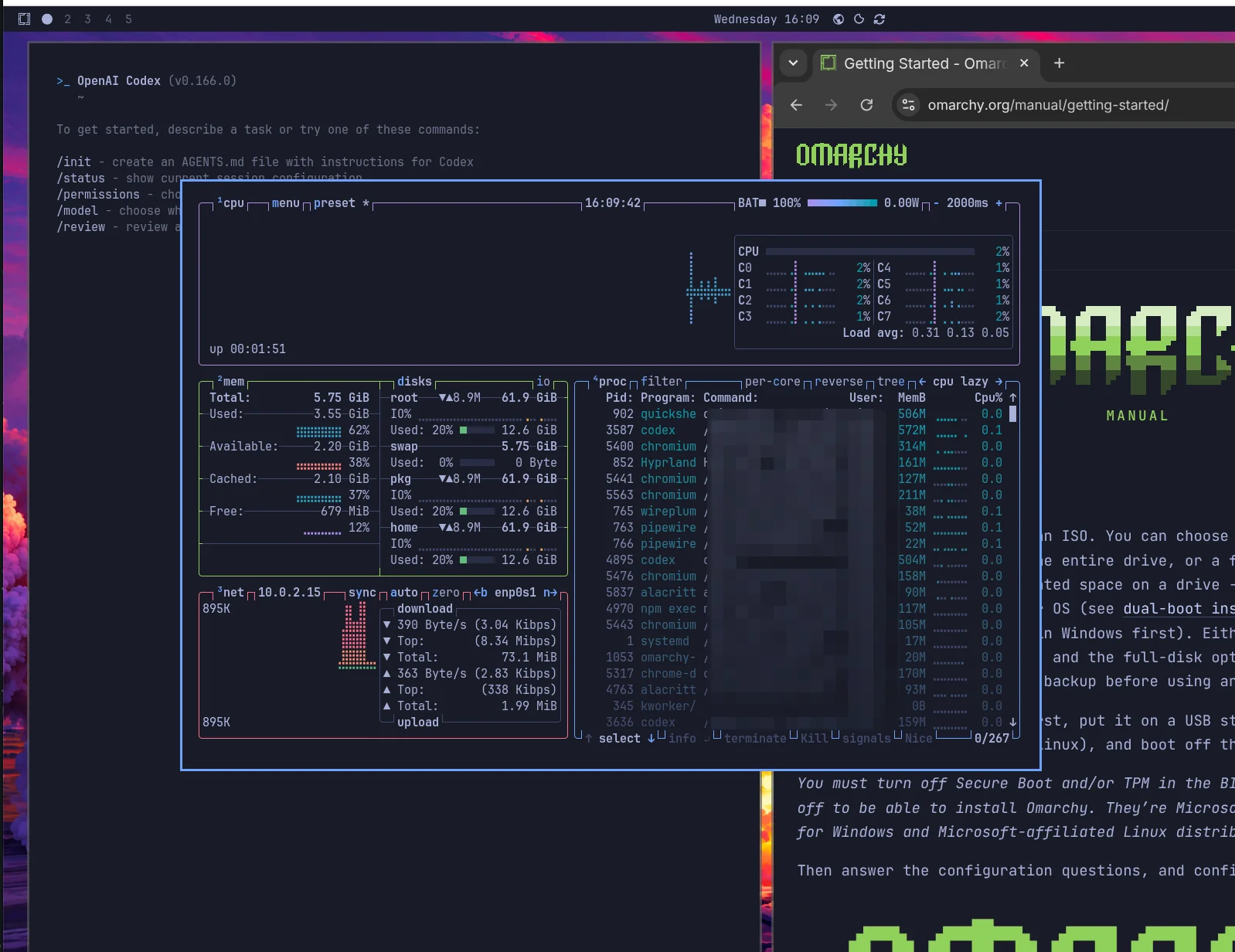
The VM takes its RAM from your computer. Give the VM 4 GB of RAM or more. For example, if your laptop has 16 GB of RAM and the VM gets 4 GB, macOS keeps 12 GB. For this reason, use a computer with 16 GB of RAM or more. With Codex and Chromium open, my VM used 3.55 GiB of its 5.75 GiB of RAM:
What the VM shares with your Mac
The Try Omarchy VM shares these items with macOS:
- one Mac folder, which has the same name in the VM (for example
~/Work) - the clipboard, in the two directions, for text and images
- the microphone, the camera and the audio output
- the battery status
Do not keep private files in the shared folder, because an agent in the VM can read them. Text that you copy on your Mac also goes to the clipboard of the VM.
When not to use Omarchy
Old hardware and a VM have limited power. Use a modern main computer for these tasks:
| Task | Why Omarchy is not a good fit |
|---|---|
| Work with Word or Excel files | Omarchy has LibreOffice Writer, Calc and Impress, not Microsoft Word or Excel. |
| Edit 4K or 8K video | This work needs a fast CPU, much RAM and a strong GPU. Old laptops do not have them. In Try Omarchy, the CPU decodes video and Vulkan graphics are not available. |
| Play modern games with high-resolution graphics | These games need a modern GPU. Old laptops do not have one, and Vulkan graphics are not available in Try Omarchy. |
| Run local AI models (LLMs) | A large language model (LLM) that runs on your own computer needs much RAM and a strong GPU. Omarchy is made for old hardware, which does not have them, and a VM gets only part of the RAM of your computer. |
| Compile or build large projects | Builds need much CPU and RAM. Old laptops are slow for large builds, and a VM gets only part of the CPU and RAM. |
| Make iPhone or Mac apps | Xcode, the Apple tool for these apps, runs only on macOS. |
Preinstalled commercial apps (bloatware)
Omarchy comes with some apps that many users do not need. Some users call them bloatware: apps that come with the system and that you did not ask for. Two examples are Basecamp and HEY. They are commercial services from 37signals, the company that DHH co-owns. Basecamp is a project management service, and HEY is an email service. HEY is proprietary and closed source: its code is not public, and only 37signals can change it.
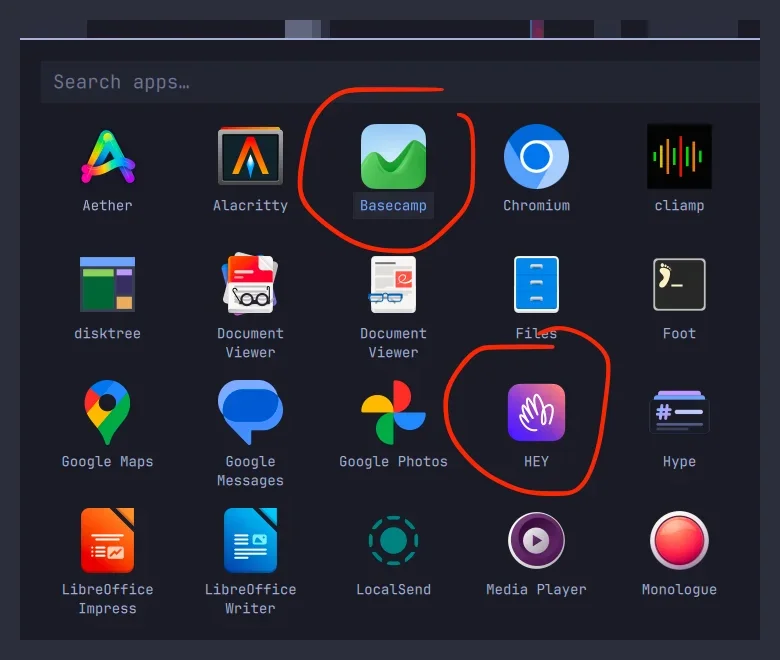
In Omarchy, Basecamp and HEY are web apps: each one opens the website of the service in a separate window. To remove a web app that you do not use, open the Omarchy menu and select Remove > Web App.
How to try Omarchy on a Mac
Try Omarchy is a Mac app that runs Omarchy in a VM. You need:
- a Mac with Apple silicon (an M-series chip)
- macOS 15 or later
- approximately 15 GB of free disk space
To install Try Omarchy:
- Open the Releases page of Try Omarchy on GitHub.
- Download the
.dmgfile of the latest version. - Open the
.dmgfile and drag Try Omarchy to the Applications folder. - Open Try Omarchy and click Launch Omarchy.
- Wait for the download of the Omarchy image. The first download is approximately 3 GB.
- When Omarchy asks for a default agent, choose one.
In Try Omarchy, the Cmd key works as the Super key. To move the mouse pointer back to macOS, press Ctrl+Option+G. The Omarchy site also lists a VM option for Windows 10 and 11.
Passwordless sudo
The sudo command runs a command as the administrator. Omarchy can let you use sudo without a password for a limited time. It asks how long this mode stays on:
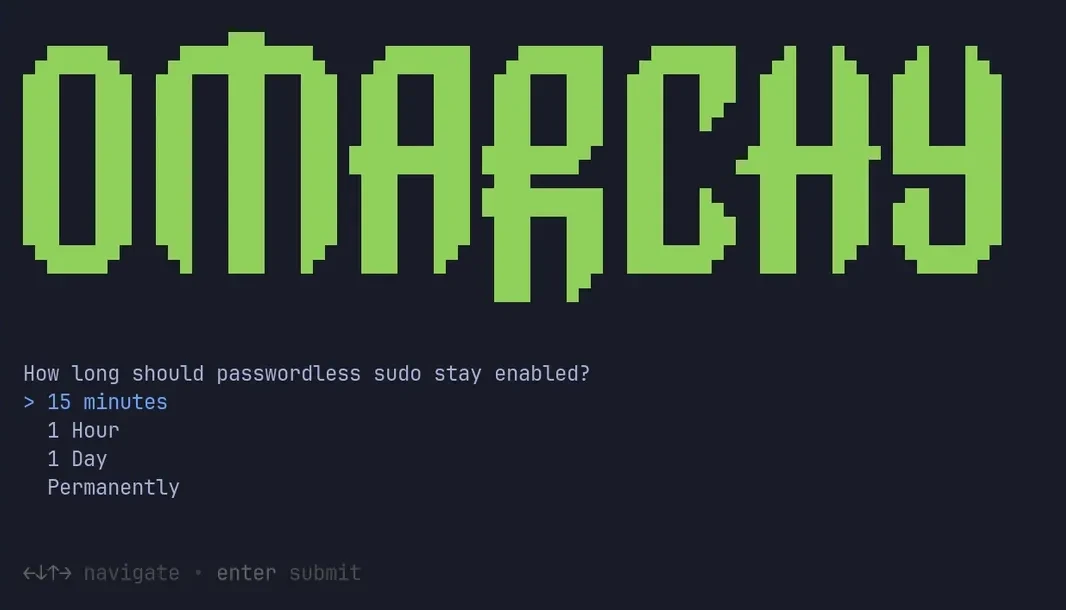
Choose the shortest time that you need. Agents that you open from the Omarchy launchers run in modes where they do not stop to ask you. During this time, an agent can also run administrator commands without a password.
Omarchy keyboard shortcuts (hotkeys)
Omarchy uses the Super key for most shortcuts. On a Mac, Super is the Cmd key. On a PC, Super is the Windows key.
| Action | Mac | PC |
|---|---|---|
| Move a window | Hold Cmd and drag the window | Hold Win and drag the window |
| Go to virtual desktop 1 to 5 | Cmd+1 to Cmd+5 | Win+1 to Win+5 |
| Close a window | Cmd+W | Win+W |
| Open btop (Activity) | Cmd+Shift+T | Win+Shift+T |
| Open the Omarchy menu | Cmd+Space | Win+Space |
| Open the app launcher | Cmd+Option+Space | Win+Alt+Space |
| Open the clipboard history | Cmd+Ctrl+V | Win+Ctrl+V |
| Open the world clock | Cmd+Ctrl+Option+E | Win+Ctrl+Alt+E |
The Omarchy hotkeys page lists all shortcuts.
The Omarchy menu
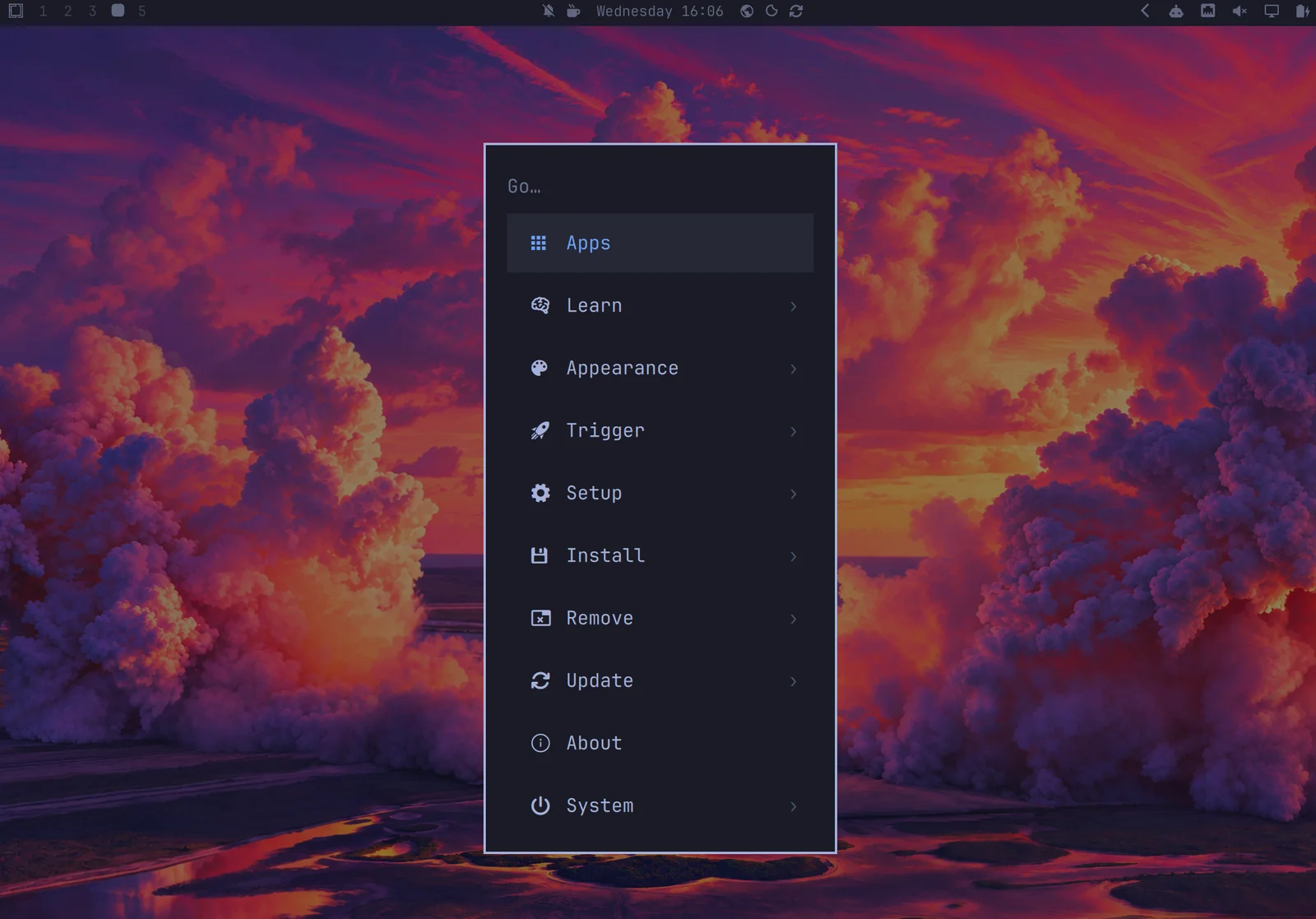
Press Cmd+Space to open the Omarchy menu. Use it to open apps, change the appearance, install or remove apps and update the system.
Virtual desktops
A virtual desktop is a separate screen with its own windows. The status bar shows the virtual desktops at the top left, as numbers and dots. For example, press Cmd+2 to go to the second virtual desktop. Click a virtual desktop icon in the status bar to arrange its windows automatically.
btop
btop shows the apps and processes that run, and how much CPU and RAM each one uses. Press Cmd+Shift+T to open it.
Omarchy status bar widgets
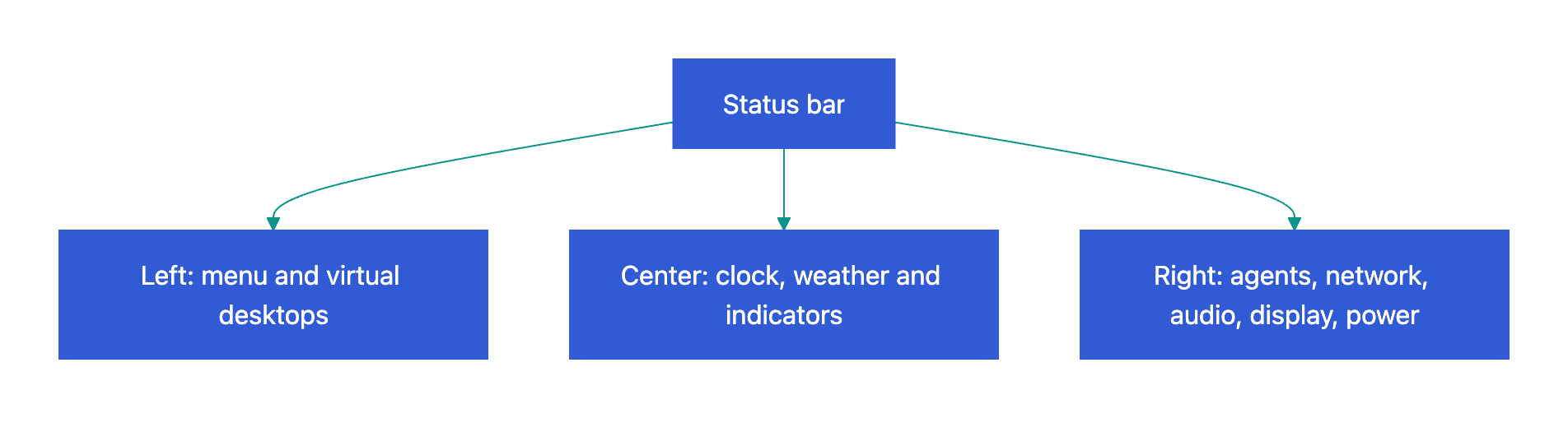
The status bar at the top of the screen has three parts:
- Left: the Omarchy menu and the virtual desktops.
- Center: the clock, the world clock, the weather and the mode indicators.
- Right: the widgets for AI agents, network, audio, display and power.
Parts of the status bar:
Click an icon to open its widget.
Display
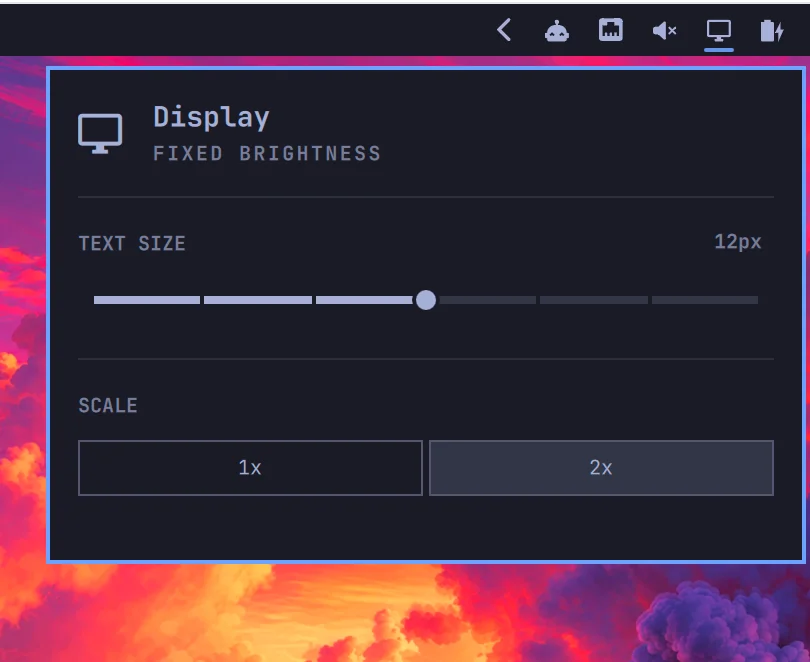
The display widget changes the text size and the scale (1x or 2x).
Audio
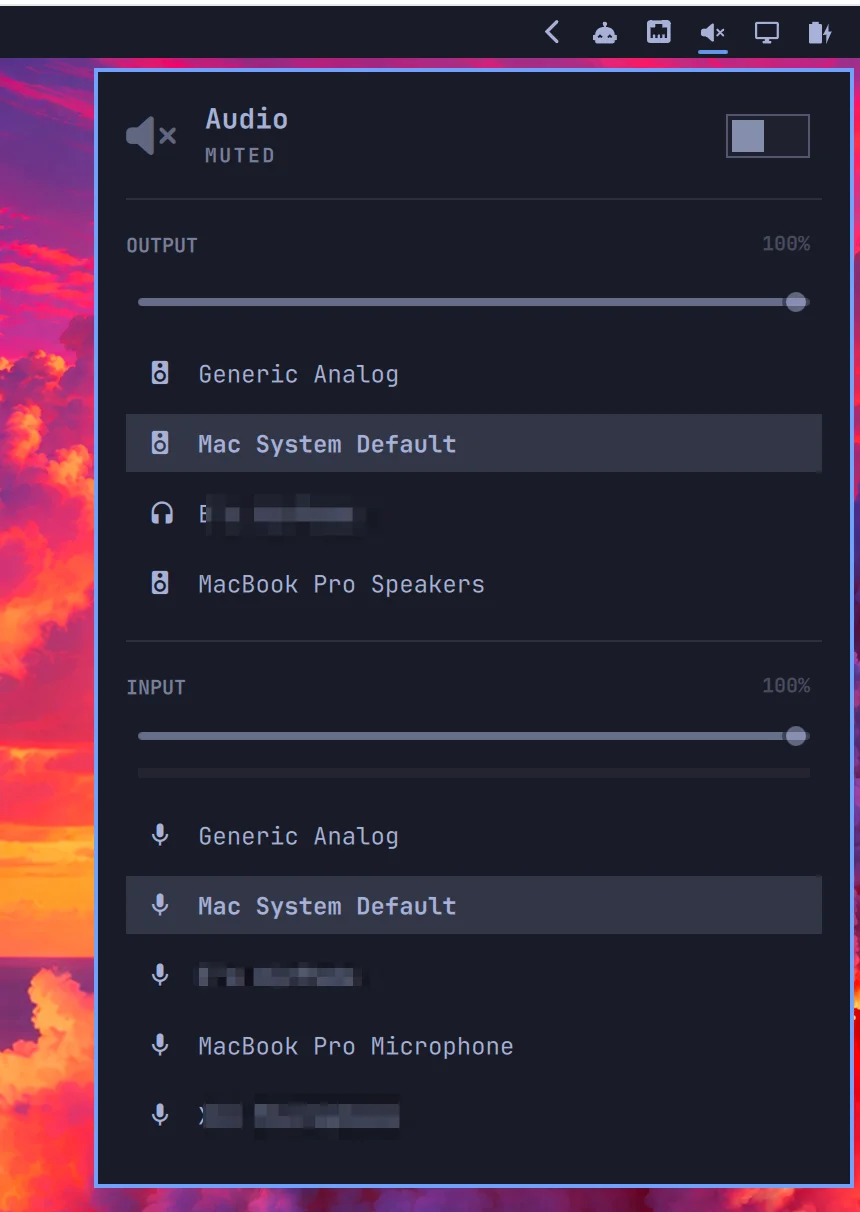
The audio widget mutes the audio and selects the output and input devices. You can also right-click the audio icon to mute.
Stay awake
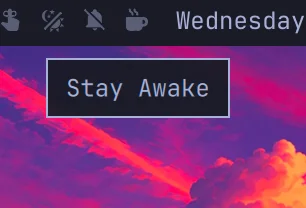
The stay awake mode keeps the computer from going to sleep. Click the coffee cup icon to turn the mode on or off.
Weather
The weather widget shows the weather at your location and a forecast for three days.

Network
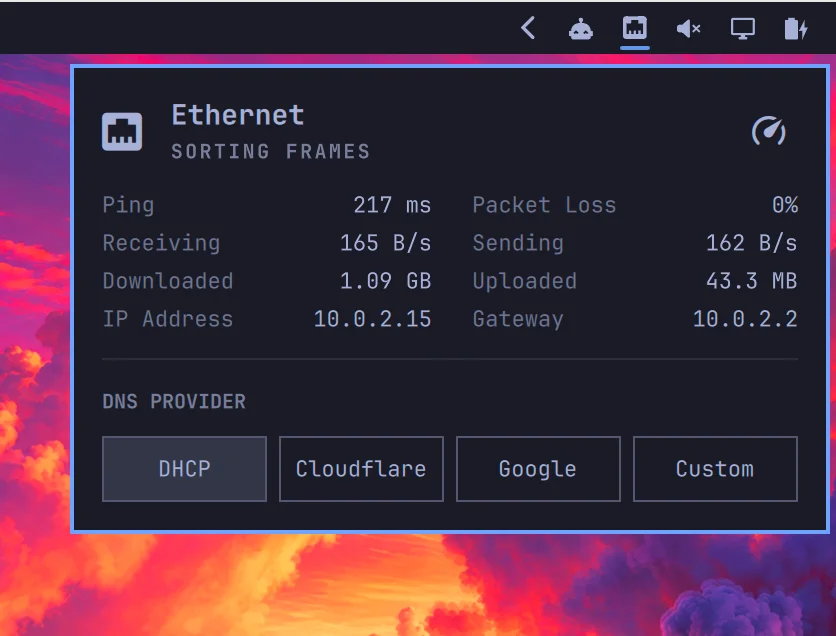
The network widget shows the ping, the receive and send speed and the total data. It also selects the DNS provider (the service that finds the address of a website): DHCP, Cloudflare, Google or a custom one.
Power
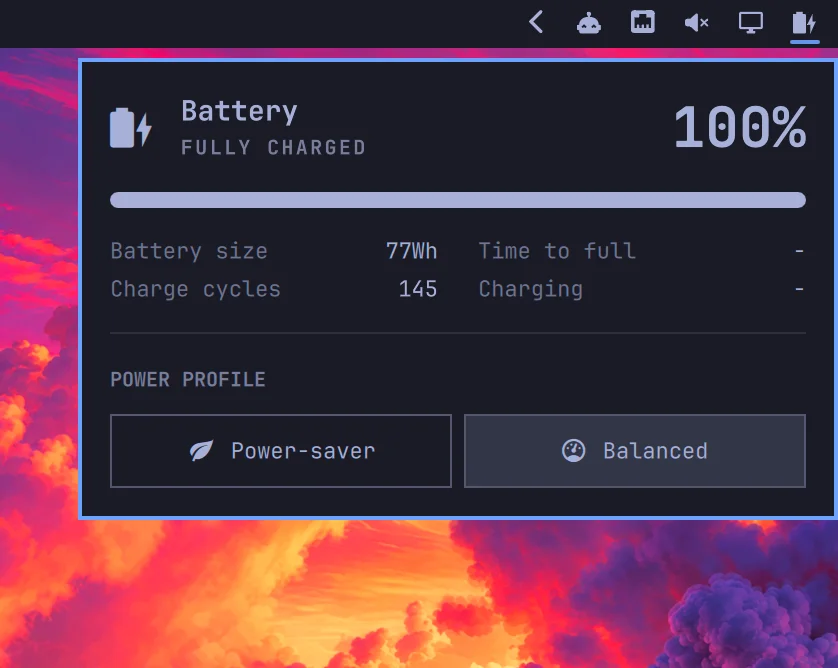
The power widget shows the battery level, size and charge cycles. It also selects the power profile: Power-saver or Balanced. In Try Omarchy, the widget shows the battery of the Mac.
AI agent limits
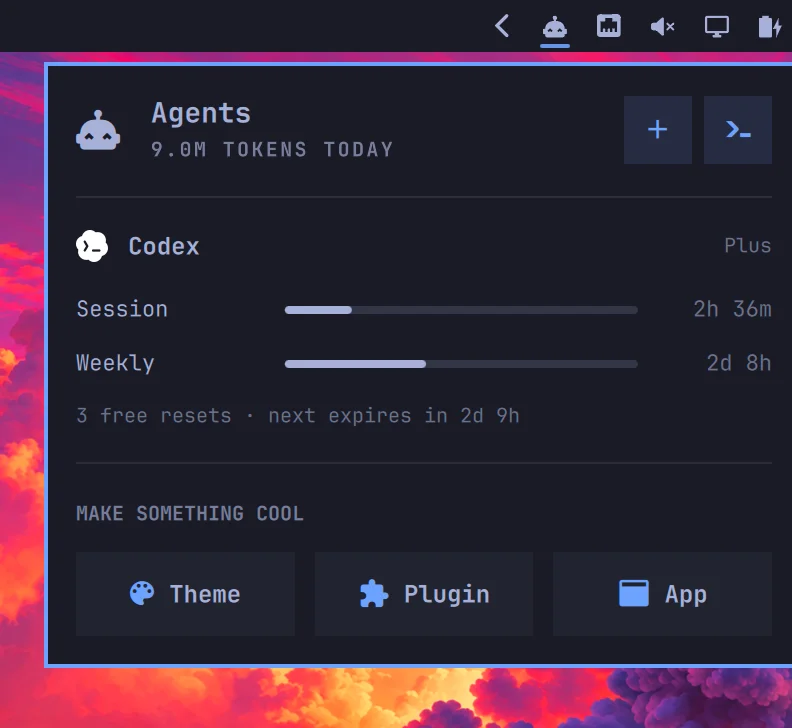
The agents widget shows how many tokens (units of text that AI models count) your agents used today. For each agent, it shows a meter for the 5-hour session limit and for the weekly limit, and the time until each limit resets. The icon appears after Omarchy finds AI agent use on the machine.
Under Make something cool, the Theme, Plugin and App buttons send a starter prompt to your default agent.
Screen recording
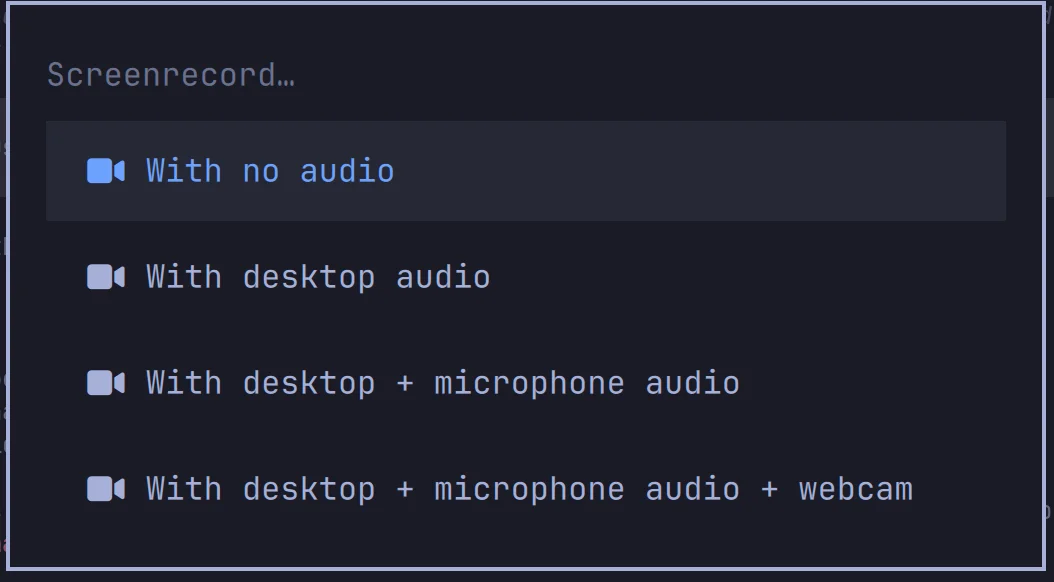
Press Alt+Print Screen to start or stop a recording. Before the recording starts, select the audio to record:
- no audio
- desktop audio
- desktop audio and the microphone
- desktop audio, the microphone and the webcam
Apps that come with Omarchy
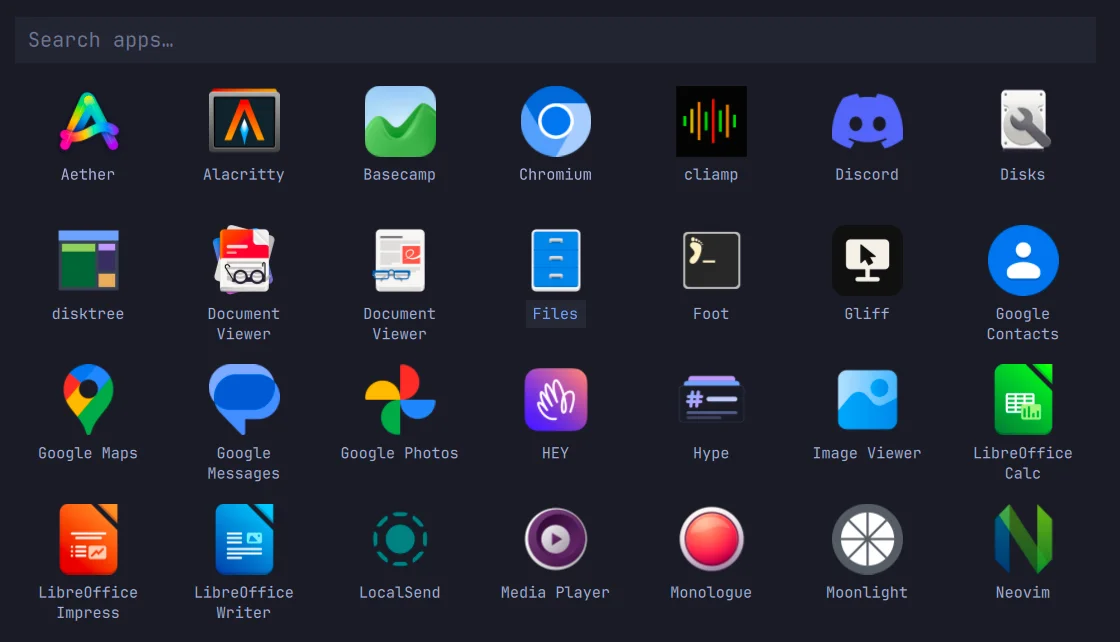
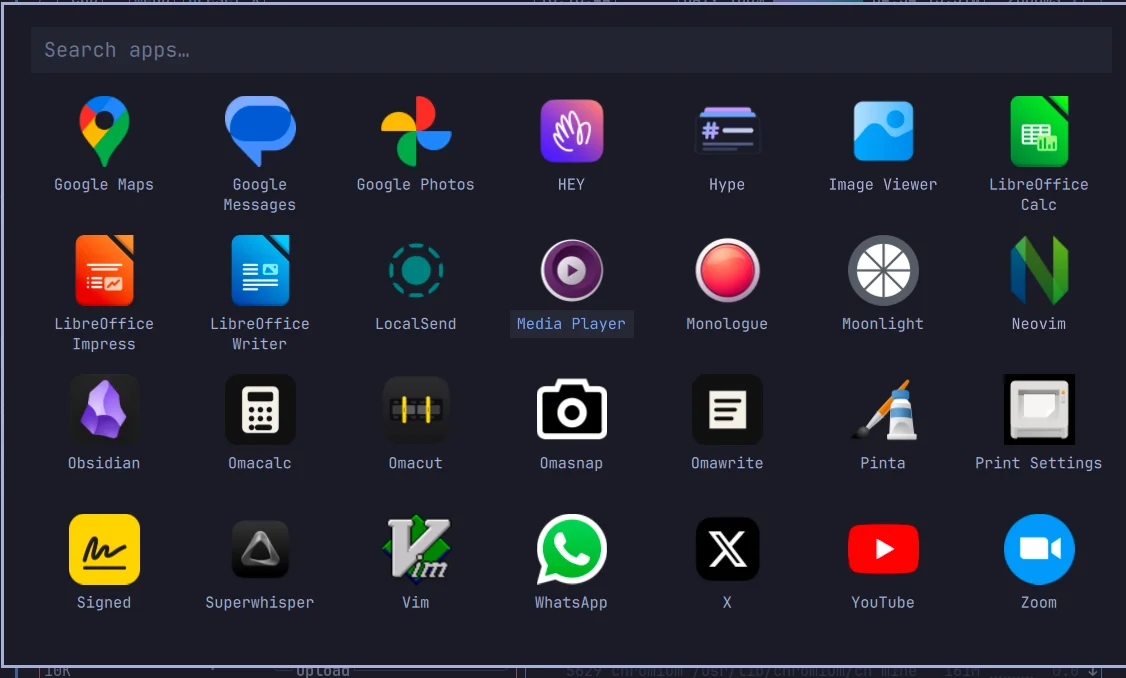
Press Cmd+Option+Space to open the app launcher. Omarchy comes with these apps:
| Type | Apps |
|---|---|
| Browser | Chromium |
| Terminals | Alacritty, Foot |
| Editors and notes | Neovim, Vim, Obsidian |
| Office | LibreOffice Writer, LibreOffice Calc, LibreOffice Impress, Document Viewer, Print Settings |
| Images and video | Image Viewer, Pinta, Media Player, YouTube |
| Messages and meetings | Discord, HEY, Google Messages, WhatsApp, X, Zoom |
| Google Contacts, Google Maps, Google Photos | |
| Files and disks | Files, Disks, disktree, LocalSend |
| Omarchy tools | Omacalc, Omacut, Omasnap, Omawrite |
| Other | Aether, Basecamp, cliamp, Gliff, Hype, Monologue, Moonlight, Signed, Superwhisper |
Chromium extensions
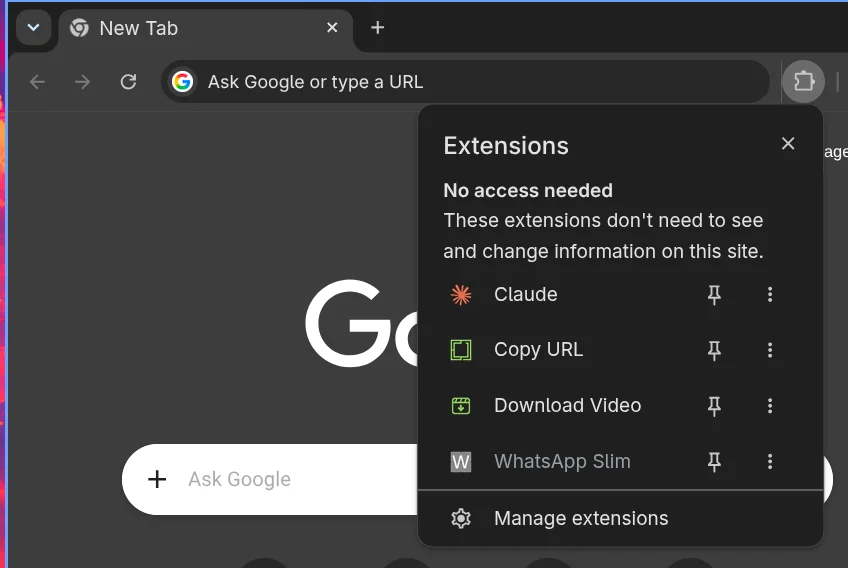
Chromium in Omarchy comes with two extensions:
| Extension | What it does | Shortcut |
|---|---|---|
| Copy URL | Copies the address of the current tab | Alt+Shift+L |
| Download Video | Downloads the video on the current page to ~/Videos |
Alt+Shift+D |
On a Mac keyboard, Alt is the Option key. Omarchy can also set up the Claude extension for Chromium.
Give the AI agent in Omarchy its own accounts
A separate machine protects your data only if the agent also uses separate accounts. In the VM, sign in with accounts that you made for the agent, not with your personal accounts.
Accounts for the agent in the VM:
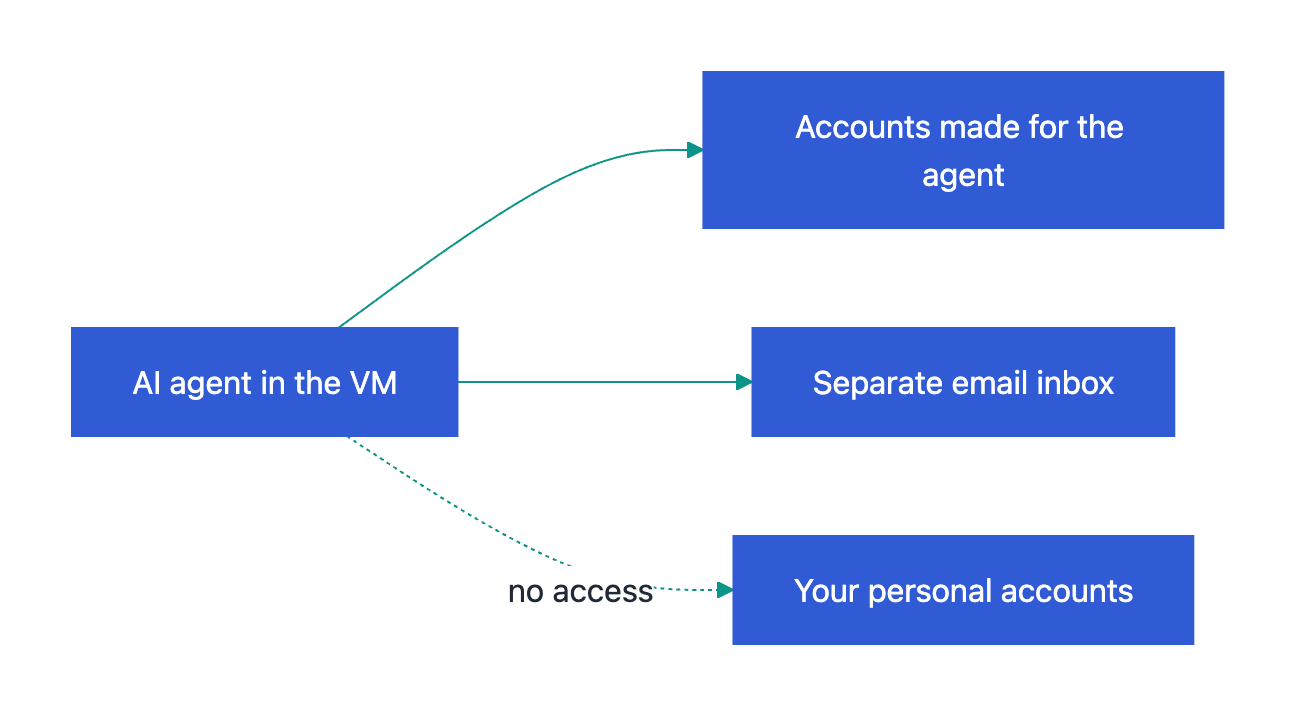
Email is the same. An agent with access to your personal Gmail can read all of your mail. Read why a personal Gmail inbox is a poor fit for an AI agent.
A docs portal with Ask AI
and support tickets
Connect a repository, or describe your product to start. Each docs site has search, Ask AI, an API console, an MCP server and support tickets.
- Publishes from GitHub on every push
- Works with Mintlify repositories
- API console from your OpenAPI file
- MCP server and llms.txt for AI agents
- Ask AI and support tickets
- Analytics for people and AI agents
Frequently Asked Questions
Can I install Omarchy on a computer instead of a VM?
Yes. This is a good way to use an old laptop, such as a ThinkPad X220. Put the Omarchy ISO file on a USB drive and start the computer from it. A full-disk installation uses the complete drive. A free-space installation uses only the empty space, so that you can keep Windows on the same drive. Before the installation, turn off Secure Boot, TPM or both in the BIOS. The Omarchy getting started page gives all steps.
Which AI agents can I use in Omarchy?
Omarchy has launchers for Claude Code, OpenAI Codex, OpenCode, Amp, Copilot CLI, Cursor CLI, Grok Build and approximately 20 other agents. Each agent installs the first time you open it. The Omarchy AI page has the full list.
How do I update Omarchy?
When an update is ready, an update icon appears in the center of the status bar. Click the icon to install the update. You can also open the Omarchy menu and select Update.