Restrict Access to a ChatGPT Site
What ChatGPT Sites offers for access
ChatGPT Sites controls access by audience. You choose who can open the Site. Invited people sign in with their own account. OpenAI’s publishing and sharing documentation describes no shared-password option. If you only need to keep a Site away from the public, the built-in audience controls can be enough. Some clients must open the Site with a password and without a ChatGPT account. For them, move a copy to a host with real password protection.
The audience choices depend on your plan and your workspace settings:
| Who can open the Site | Availability | Good for |
|---|---|---|
| Owner and workspace admins | Default for every new Site | Drafts |
| Selected active users or groups | Where supported | Internal review |
| Invited external viewers | When external invitations are available | Named clients or partners |
| Anyone in the workspace | Where supported | Team tools |
| Anyone on the internet | Only when public publishing is enabled | Public pages |
Note these details:
- OpenAI releases external invitations to Plus, Pro, Business and Enterprise plans in stages. If you do not see the option, make sure that you use the correct account. Then look at who owns the Site and at your workspace permissions. Also, the release possibly did not reach your account yet.
- In Enterprise workspaces, public publishing is off by default until an admin enables it. Admins control external invitations with Allow members to invite external visitors to sites. This control is under Workspace settings > Permissions & roles.
- With visitor access, a person can open the Site but cannot edit it.
- The audience control of the Site and a login screen inside the Site are separate controls. A login form inside the page does not change the list of people that you shared the Site with.
Restrict a Site to named people
These steps follow OpenAI’s documentation. Labels can differ slightly by account.
- Open the Site that you own in ChatGPT. Select Share.
- Set Who has access to Only those invited.
- Under Search for people or groups, enter the email address of the person. For a personal Site, use Enter an email address instead. Then select the person.
- Make sure that the person has Viewer access. Then select Invite.
- Make sure that the person appears in the saved access list.
- Send the link. Tell the person to sign in with the account that you invited.
Test the link in a browser where you are signed in with an account that you did not invite. The Site must not open.
To remove a person, open the sharing controls. Then remove the access of that person. This action only removes the invitation. If the Site is also shared with the workspace, a group or the public, the person can still get in that way. Make sure that no other audience gives the person access.
Take a Site offline
To stop access without deleting anything, change Who has access back to yourself or a short list. Then make sure that the old audience can no longer open the Site.
To delete the Site, open your sites list and find the Site. Select Delete site. Type the slug of the Site (the short name in its address). Select Permanently delete. OpenAI’s site management page says that you cannot restore a deleted Site.
Neither step recalls what people already saved. This includes screenshots, downloaded files, copied text and pages that a search engine cached while the Site was public. If something sensitive was public, assume that someone copied it. A separate article shows how public Sites can show up in Google.
When the client needs a real password
Move a copy of the Site to a host where the server requires the password before it sends any file. The original Site keeps its own audience control. Restrict or delete it separately.
| Host | Protection | Plan note |
|---|---|---|
| Netlify | Shared site password under Visitor access > Password Protection (docs) | Pro plans. Not available on the credit-based Free and Personal plans |
| Vercel | Password Protection under Settings > Deployment Protection (docs) | Paid add-on on Pro. Not available on Hobby |
| Cloudflare Pages | Cloudflare Access with an emailed one-time code instead of a shared password | Visitors only need an email inbox |
| GitHub Pages | No password option. Private visibility limits the site to people with read access to the repository | Organizations on GitHub Enterprise Cloud only |
Our step-by-step guides cover each one: Netlify, Vercel, Cloudflare Pages and GitHub Pages.
Move the Site and protect the copy
- Get the project files. If you started the Site from a local project, you already have them. If you built it in a chat, ask ChatGPT for the complete project as files. Keep the folder structure. The Sites documentation does not describe a download button. Treat the files that you get as a new project, and test them. Our guide to exporting a ChatGPT Site gives more detail.
- List the parts that run on a server. A Site can store data in a database and in file storage. A plain static host only serves files. After a simple upload, forms that save entries, logins and saved data stop working. Rebuild those parts with the functions of the new host, or remove them.
- Remove what must not ship. API keys, private prompts, test data and customer details must not be in the folder. The visitor can read anything that the host sends to the browser.
- Build and run the project locally. Open the pages through a local server. Click through every page. Make sure that images, fonts and downloads work.
- Deploy the project. On Netlify, drag the output folder onto app.netlify.com/drop. You can also run
netlify deploy --prod --dir <folder>from the Netlify CLI. - Before you share the link, turn on protection. On Netlify, choose the option that protects all deploys. This option also protects production. On Vercel, choose the All Deployments scope. Standard Protection leaves production domains open.
- Sign out and test the site. Open the home page, a nested page and a direct file URL, such as a PDF or an image. Each one must ask for the password. Test preview and branch URLs too.
- Restrict or delete the original ChatGPT Site. Then send only the new link.
Why a JavaScript password prompt is not protection
It is tempting to ask ChatGPT for a password box inside the page. A password box only hides content that the browser already downloaded. The HTML, scripts, images and even the password test itself are in the files. Anyone can open these files with the developer tools of the browser. Anyone can also request the file URLs directly. Real protection happens on the server before it sends the files, and the hosts above do this.
Which route fits
- Named reviewers who can sign in to ChatGPT: keep the Site and use Only those invited.
- A team inside your workspace: use workspace or group access.
- A client who will not create an account and expects a password: move a copy to Netlify or Vercel. Protect it there.
- Named people without accounts and without a shared password: move a copy to Cloudflare Pages. Let them in with an emailed code.
Free email addresses
for your AI agents
Each agent gets an address like myagent.x7k2@revdokumail.com. It can receive emails, send replies and store files.
- 3 free mailboxes, each with its own address
- 3,000 incoming and 500 sent emails a month
- 3 GB of storage for attachments and files
- Virus, malware, spam and prompt-injection filter
- Read and reply through API, MCP or CLI
You do not need a card.
Frequently Asked Questions
Can I see who opened my ChatGPT Site?
Sites records traffic on its own. Find the Site in your sites list. Choose More actions, then Analytics. OpenAI says that analytics is not available for Sites that an Enterprise workspace owns. Its documentation also does not describe a list that shows which invited viewer opened the Site.
Can I keep the same address after moving the Site?
Only if the Site uses a custom domain that you own. Add that domain to the new host. Then update its DNS records at your domain provider. The address that ChatGPT assigned to the Site does not move with the files.
Related Articles
Move Exported Grok Website Files to Another Host
Export a Grok Build site to GitHub, deploy it on Cloudflare Pages, Netlify, Vercel or GitHub Pages, test it, then retire the grok.me copy.
Move Exported Claude Artifacts to Another Host
Move a Claude Artifact to Cloudflare Pages, Netlify or GitHub Pages: get the code, build React artifacts, replace Claude-only features, then unpublish.
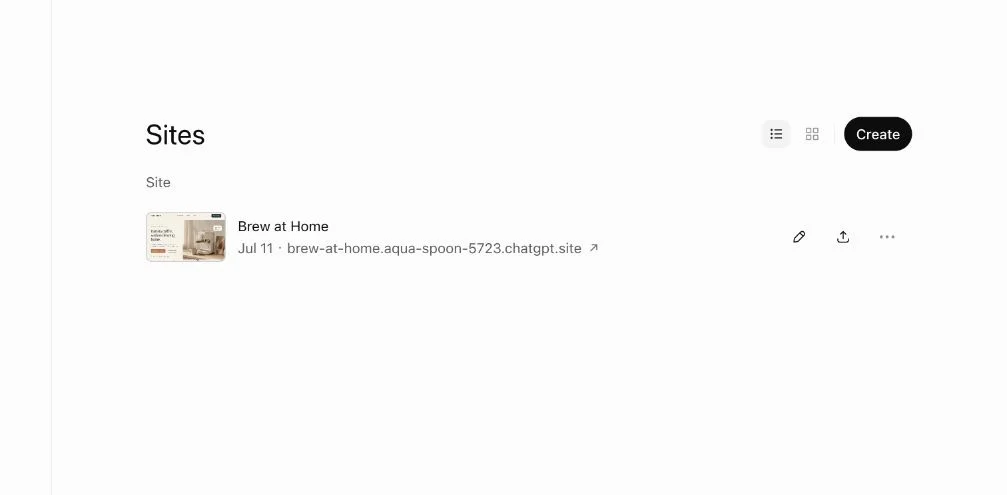
Move a ChatGPT Site to Another Host
ChatGPT Sites has no documented export. Get the source, and replace storage and sign-in. Test a copy on Cloudflare Pages or Netlify before you switch.