
Food Delivery Photo Requirements for Restaurants
DoorDash and Uber Eats photo requirements
DoorDash and Uber Eats reject menu photos that do not follow their rules. The table compares the rules for item photos, from the DoorDash photo issues guide and the Uber Eats menu photo guidelines.
| Rule | DoorDash | Uber Eats |
|---|---|---|
| Size | At least 1400 x 800 pixels. Do not upscale small images. | Height 440 to 10,000 pixels, width 550 to 10,000 pixels |
| Shape | Horizontal 16:9 only. Vertical and square photos are not accepted. | 5:4 to 6:4 (recommended) |
| File | Up to 2 MB, JPG or PNG (DoorDash developer docs) | Up to 10 MB, JPG, PNG, or GIF |
| Items in the photo | One item, unless the items are sold together | One item only |
| Framing | Centered. At least 80% of the item is visible, and the item fills 50 to 70% of the frame. | Centered, not in a corner or off the frame |
| Light | Bright and even, with no harsh shadows and no areas that are too bright | No strong shadows or poor light |
| Background | Simple, with no distractions. Not overly colorful, not white, not transparent. | Clean. No dirty surfaces, dirty plates, or used cutlery. |
| People | No people. Hands only if they do not hide the item. | No people, except hands |
| Logos and watermarks | No watermarks or borders. Logos only where they appear naturally, for example on a cup. | No logos or watermarks, except on the food or the packaging |
| Text | Only text that is on the item itself | No text, except on the food or the packaging |
| Accuracy and rights | Shows exactly what the customer gets. Real photos that you own: no stock photos, clip art, or images from other websites. | Shows the item accurately. You own the images or have the right to use them. |
The two platforms use different shapes. Shoot each dish with space around it at full resolution. Then crop one 16:9 copy for DoorDash and one 5:4 or 3:2 copy for Uber Eats.
Before you upload
Make sure that each photo meets these conditions:
- The size and the shape meet the rules of the platform.
- The photo is sharp and in focus.
- The photo shows one menu item, and that item is in the center.
- The light is even, and the colors look natural.
- The background is plain and clean.
- No people, logos, watermarks, borders, or added text are in the photo.
- The dish, the portion, and the sides agree with the menu description.
- The photo is current. If you changed the plating or the portion size, take a new photo.
- You took the photo, or you have the rights to it.
- Each menu item has its own photo.
How to shoot menu photos
You can take menu photos with a phone. DoorDash gives these menu photo tips: natural light, a neutral background, simple angles, and few edits.
Follow these steps for each dish:
- Prepare the dish as you serve it to customers, with the usual portion and sides.
- Put the dish on a plain surface, for example wood or stone, near a window.
- Use soft daylight from the window. If you use a lamp, use one light source only.
- Put the phone on a stand or a tripod. Set a short timer, so that the phone does not move when you take the photo.
- Shoot from directly above for flat dishes, such as salads. Shoot straight on, from the side, for tall dishes.
- Take several photos of each dish, and keep the sharpest one.
- Make only small edits: crop, straighten, and adjust the contrast and the color warmth.
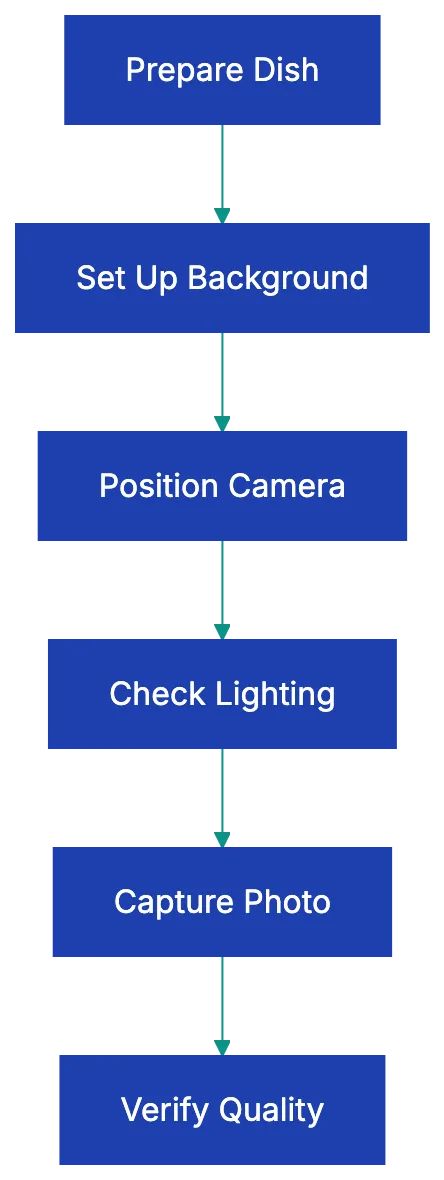
Use the same surface, light, and time of day for all dishes. DoorDash recommends this consistency. Also use one or two colors or patterns of dishware.
Common rejections and fixes
Each platform reviews a new photo against its rules. A photo that fails a rule does not go on the menu.
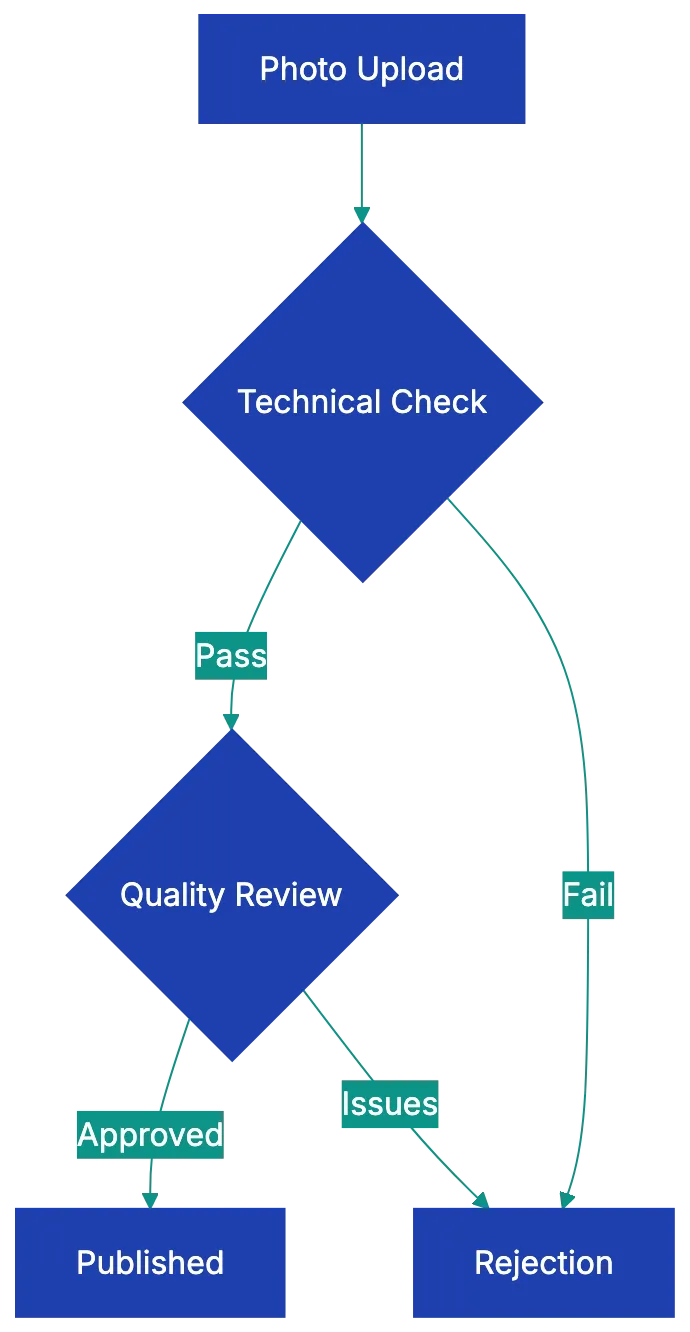
| Rejection reason | Fix |
|---|---|
| Too small or blurry | Upload the original file from the camera, not a screenshot or a compressed copy. |
| Wrong shape | Crop the original photo to the shape that the platform needs. Do not stretch it. |
| Too dark or harsh shadows | Take a new photo near a window in the daytime. |
| Busy or white background | Use a plain wood or stone surface, and remove sauces, napkins, and phones. |
| Too close or too far | Show the full dish, centered, with some space around it. |
| More than one item | Take a separate photo of each item that you sell separately. |
| Logo, watermark, border, or text | Use the original photo without overlays. |
| Photo does not agree with the menu | Take a new photo of the dish as you serve it, or correct the menu description. |
| Stock photo or photo from another website | Use your own photo. |
If the reason for a rejection is not clear, compare your photo with this checklist line by line. If you still cannot find the problem, contact the merchant support of the platform. Tell them the rules that the photo meets, and ask which rule it failed.
Large menus
To photograph a large menu, do the work in short sessions:
- Make a list of all menu items. Add columns for the photo, the upload date, and the approval status.
- Book a quiet time of day for each session.
- Prepare a small number of dishes in each session, so that the food stays fresh.
- Mark the camera position and the light setup. Use the same setup in each session.
- Upload the photos after each session, and record the result for each item.
DoorDash offers a free photoshoot to most restaurant partners, subject to availability in your area. A photographer photographs up to 20 menu items and one header image in a 1.5-hour session. You pay for the food. DoorDash says that menus with item photos saw up to 44% more monthly sales. This is a DoorDash figure.
Use this checklist with Claude or ChatGPT
Claude and ChatGPT can look at photos and compare them with this checklist:
- Paste the requirements table and the “Before you upload” list into the chat.
- Tell the model which platform the photo is for.
- Upload a few photos at a time, with the menu name and the description of each item.
- Ask the model to go through each item and list what fails.
Here are the DoorDash and Uber Eats photo rules and my pre-upload checklist.
The attached photos are for DoorDash. For each photo, I give the menu name and
description. Go through every rule for each photo. Say Pass, Fail or Not sure,
explain each Fail, and tell me how to fix it.
The model cannot measure the pixel size or the file size of an upload reliably. Read those values in the file information on your phone or computer. The model can also miss small problems, such as a faint watermark or a crumb on the plate. Make sure that each finding is correct before you take new photos. The platform makes the final decision, and its rules can change. Read the current guidelines of the platform before a large photo session.
A docs portal with Ask AI
and support tickets
Connect a repository, or describe your product to start. Each docs site has search, Ask AI, an API console, an MCP server and support tickets.
- Publishes from GitHub on every push
- Works with Mintlify repositories
- API console from your OpenAPI file
- MCP server and llms.txt for AI agents
- Ask AI and support tickets
- Analytics for people and AI agents
Related Articles
Boost eBay Sales with Quality Listing Photos
eBay listing photo rules: size, file formats, the 24-photo limit, what eBay does not allow, and a photo checklist to use before you publish.
Essential Guide to Etsy Product Photography
A checklist for Etsy listing photos: size and file rules, photo policy, the first photo, the other photos and tips by product type.