Count Candies by Color in a Photo with Revdoku
Count Candies by Color in a Photo with Revdoku
Step 1: Open Revdoku and drop the candy photo.
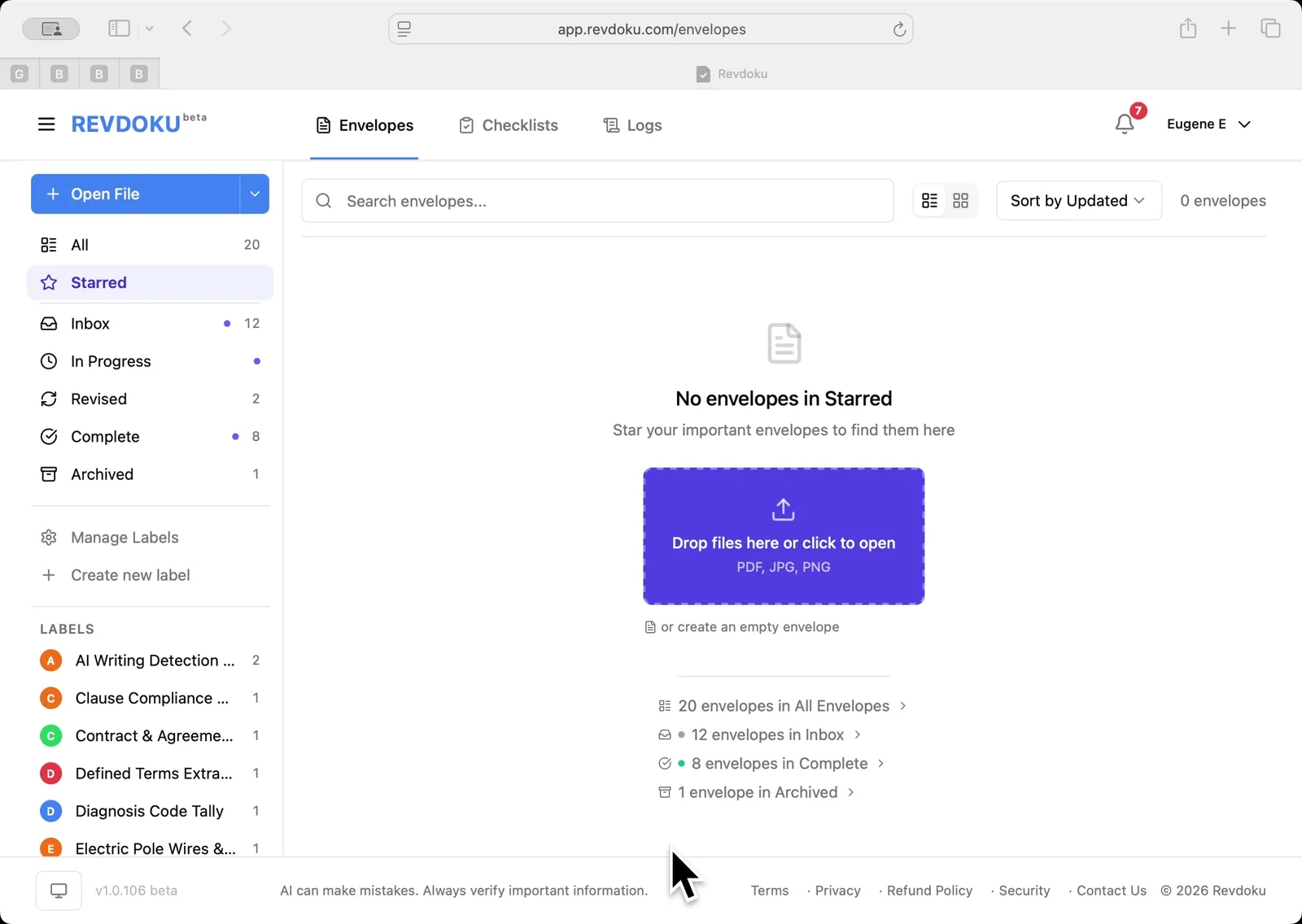
Start at the Revdoku Starred view with no envelopes open. Drag candies.png — a top-down shot of a pile of M&M-style candies on a wooden surface — into the purple Drop files here zone to create a new envelope.
Step 2: Write the checklist rule.
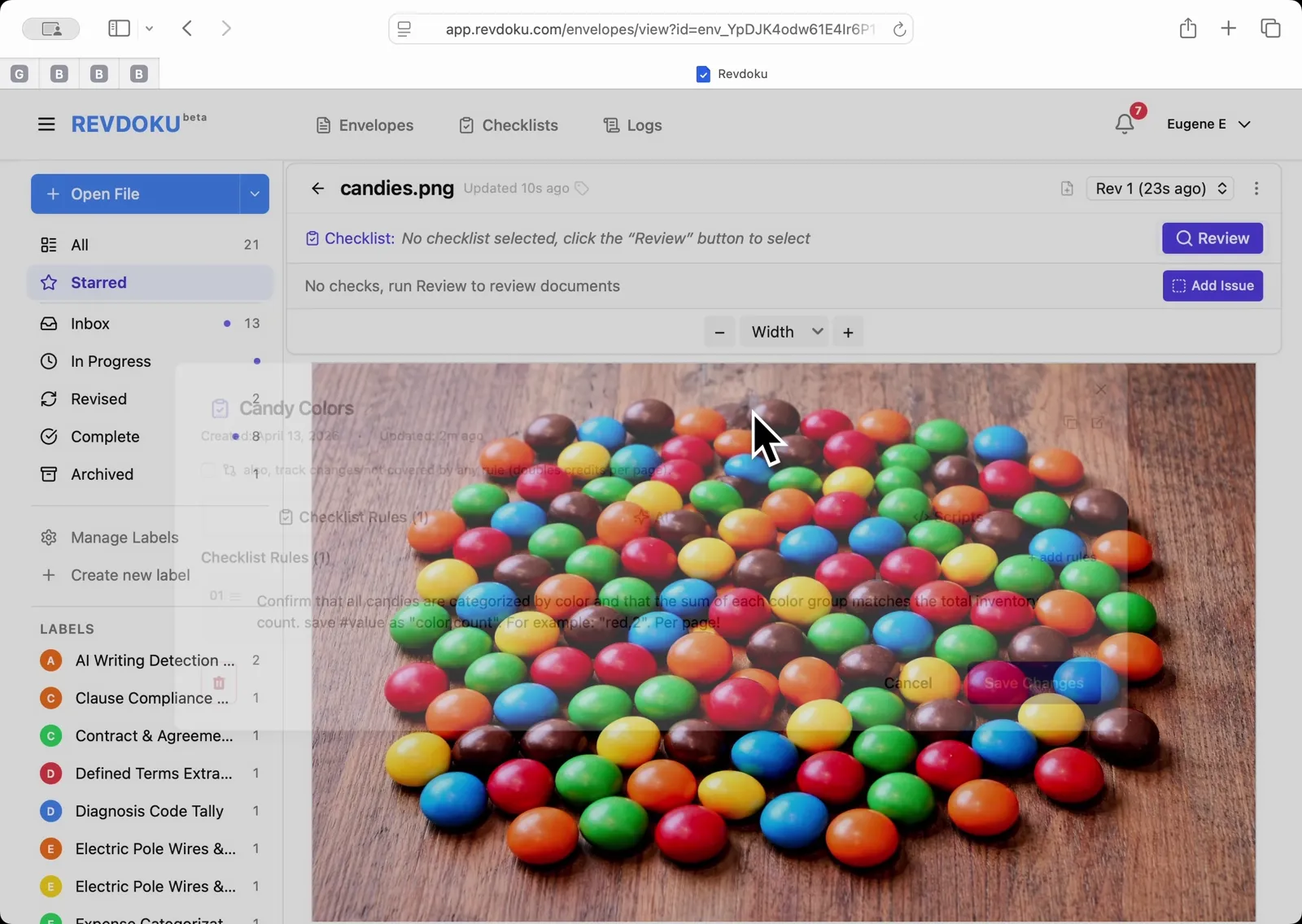
In the Add Checklist dialog, name the checklist Candy Colors and paste a one-line rule that tells Revdoku to confirm every candy is categorized by color, that the sum of each color group matches the total inventory count, and to save the check value as ‘color,count’ (for example red,21). Click Save Changes.
Step 3: Run the review.
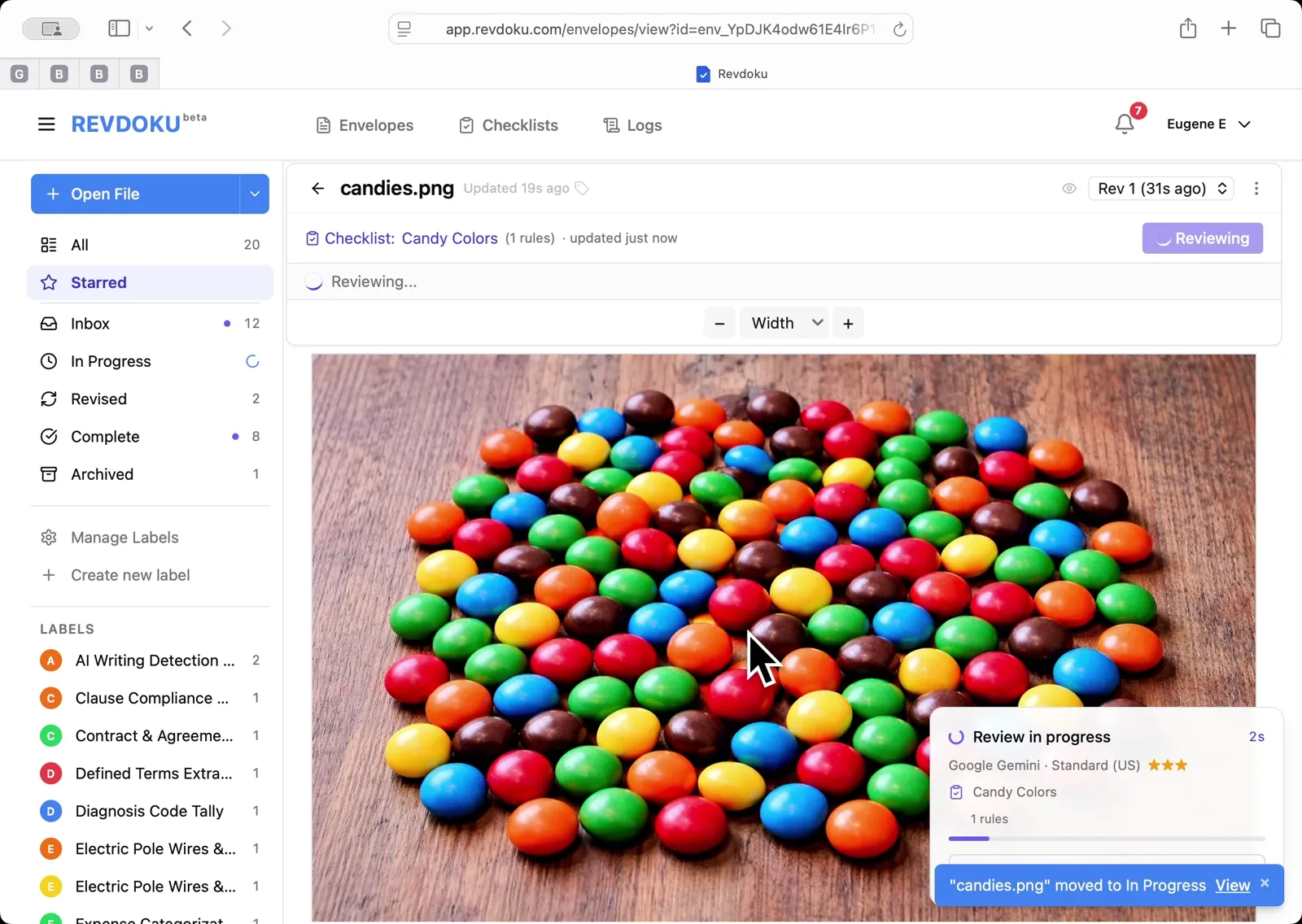
Back in the Review Envelope dialog, pick Candy Colors (1 rules), confirm the AI model Google Gemini Standard US, and click Run Review. Revdoku walks through Preparing, Analyzing, Reviewing, and Finalizing on the single image page.
Step 4: Read the per-color breakdown.
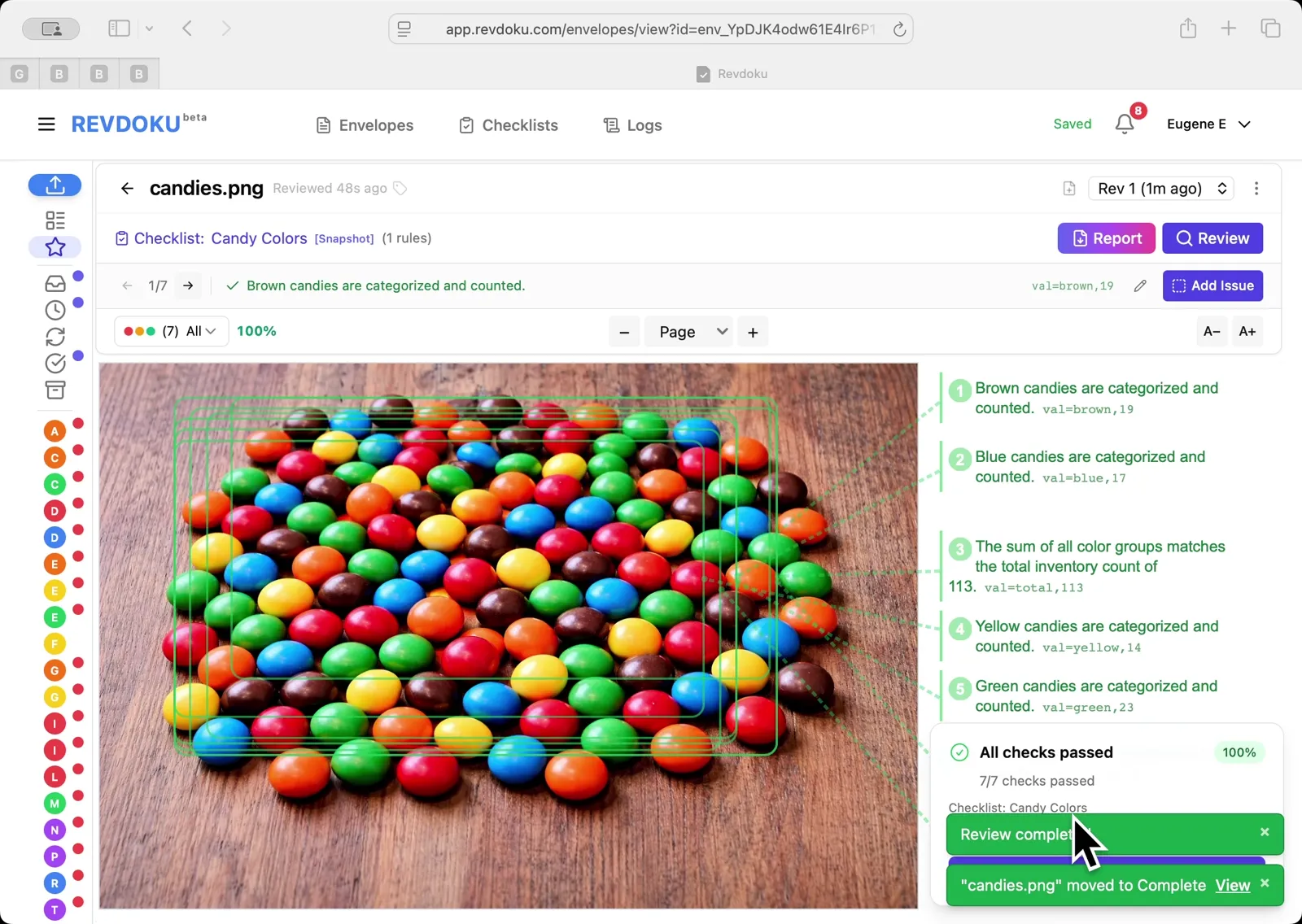
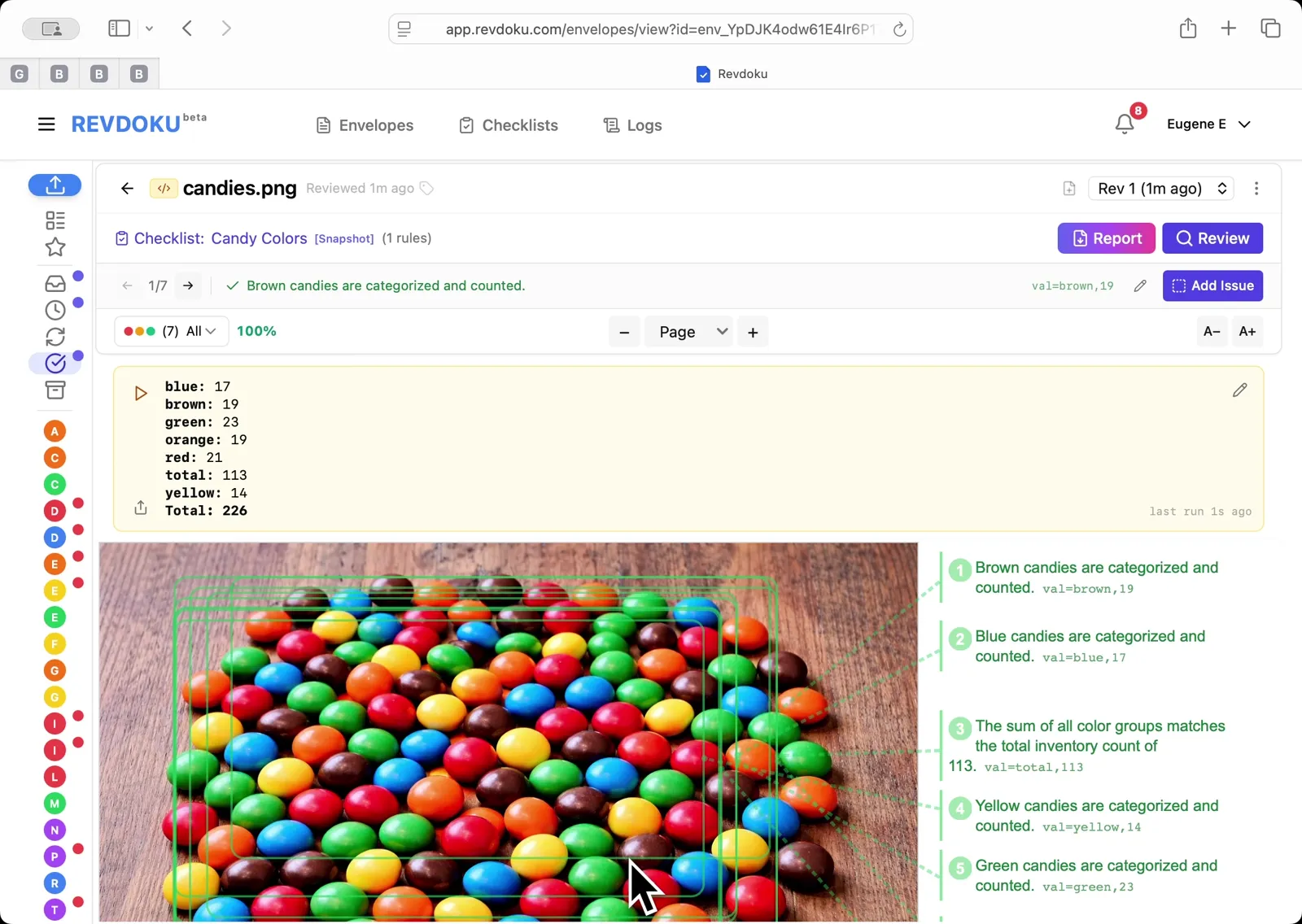
All 7 checks pass at 100% compliance. Revdoku reports brown 19, blue 17, yellow 14, green 23, orange 19, red 21, and a total of 113 candies — each count highlighted with a green region on the candy photo.
Step 5: Open the envelope script editor.
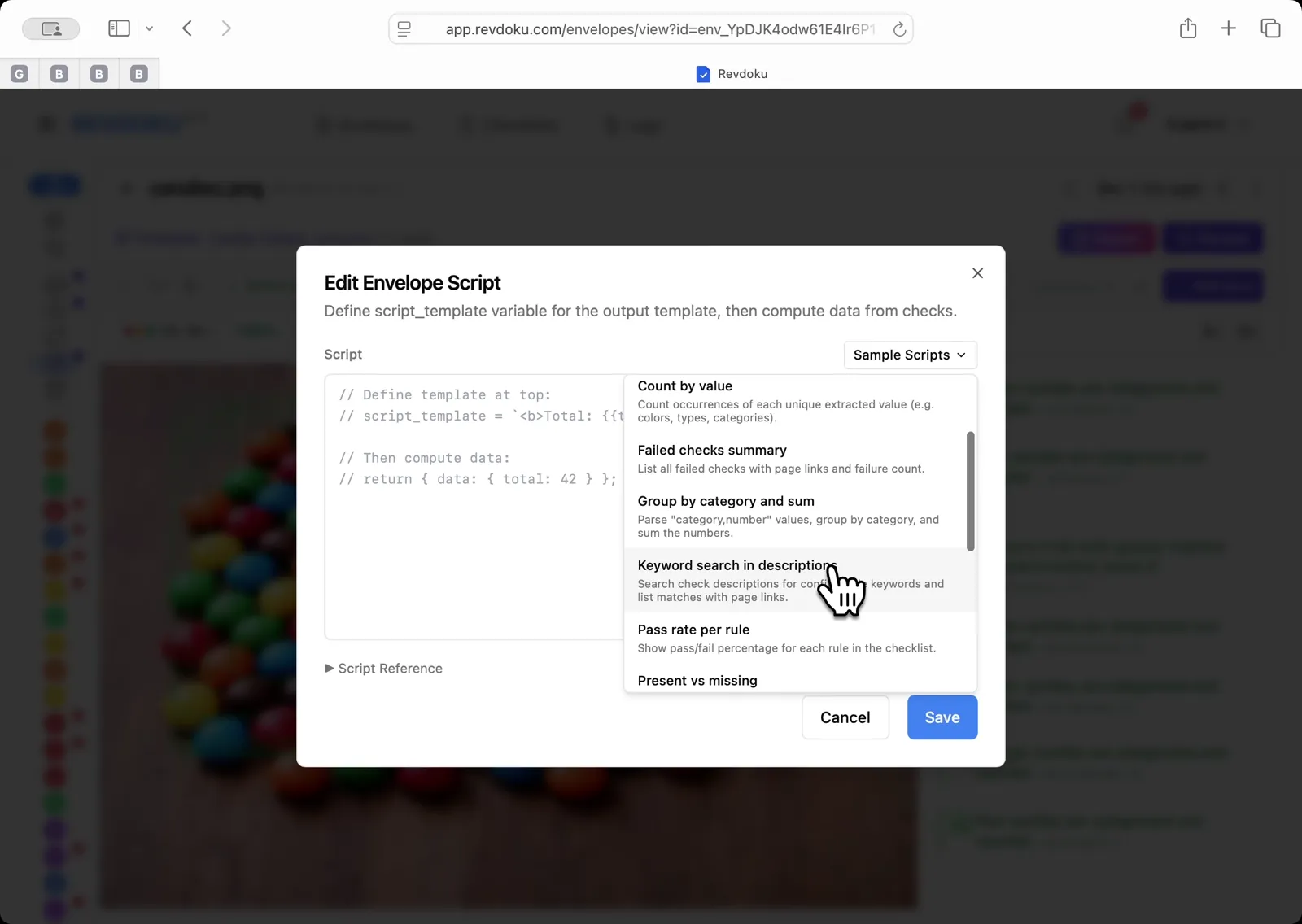
Click the more menu in the top-right of the envelope and pick Edit Script. In the Edit Envelope Script dialog, open the Sample Scripts dropdown and pick Group by category and sum — it parses each check’s ‘color,count’ value, groups by color, and sums the counts. Click Save.
Step 6: Read the computed totals.
The script output lists every color with its count — blue 17, brown 19, green 23, orange 19, red 21, yellow 14 — plus the total 113 from the inventory check, and a grand Total of 226 at the bottom. The candies photo below shows the same seven checks outlined in green.
What You Learned
This case showed how Revdoku can take a document, apply a structured checklist, and surface specific findings — all in under a minute. No manual line-by-line reading required.
Disclosure: Sample documents in this use case were generated using AI and contain intentional errors for demonstration purposes. All names, companies, and details are fictional.
Related Articles
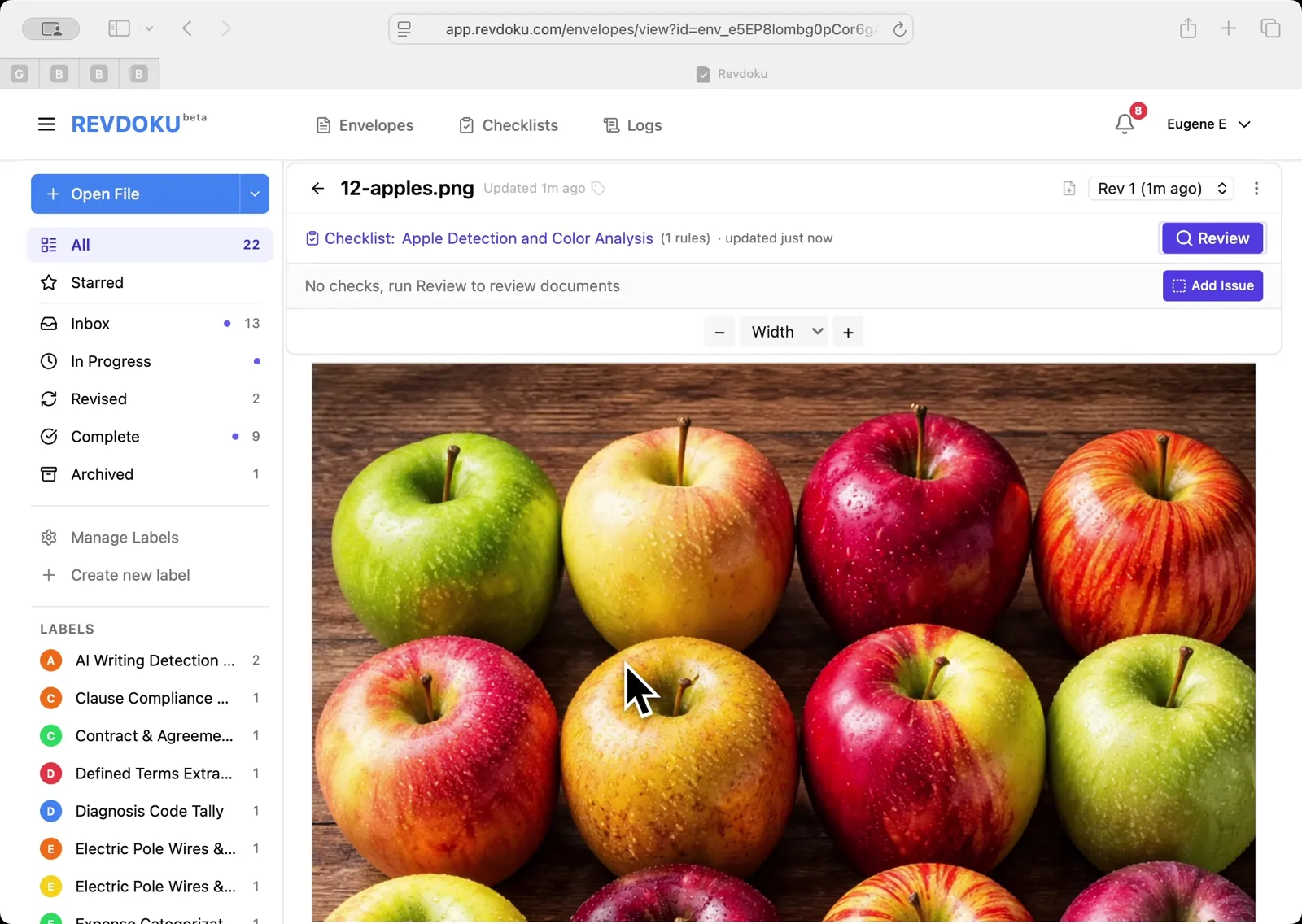
Count Unique Apple Colors in a Photo with Revdoku
Detects all 12 apples in a top-down photo and tags each by dominant color: 4 variegated, 3 red, 3 yellow, 2 green. Group-and-sum script totals 12.

Audit a Shareholder Letter for Disclosure Completeness with Revdoku
Generate a document-quality checklist from a single-line prompt with Revdoku, run it against a Letter to Shareholders from a public company, and read the per-rule pass/fail audit report.
Count Wires and Insulators on Utility Poles with Revdoku
Counts wires and insulators across 4 utility pole photos. Identifies 6-8 wires and matching insulators per pole using AI image analysis with custom counting rules.