Share Protected Files and Review Viewer Analytics in Revdoku
Table of Contents
- 1. Review traffic and top pages
- 2. Review password-only visitors
- 3. Review email-gated traffic
- 4. See visitor identity
- 5. Ask ChatGPT to summarize analytics
- 6. The visitor opens the protected site
- 7. The visitor browses the protected file index
- 8. The visitor previews a CSV
- 9. The visitor previews a text document
- 10. Configure activity visibility
- Share files without sending attachments
- 1. Review traffic and top pages
- 2. Review password-only visitors
- 3. Review email-gated traffic
- 4. See visitor identity
- 5. Ask ChatGPT to summarize analytics
- 6. The visitor opens the protected site
- 7. The visitor browses the protected file index
- 8. The visitor previews a CSV
- 9. The visitor previews a text document
- 10. Configure activity visibility
- Share files without sending attachments
This tutorial shows the protected-file loop in Revdoku: publish a password-protected website, let a visitor open files in the browser, then review owner-side traffic and visitor analytics. The example uses the Leads bucket for password-protected file viewing and the Semi News Today bucket to show password-plus-email visitor attribution.
1. Review traffic and top pages
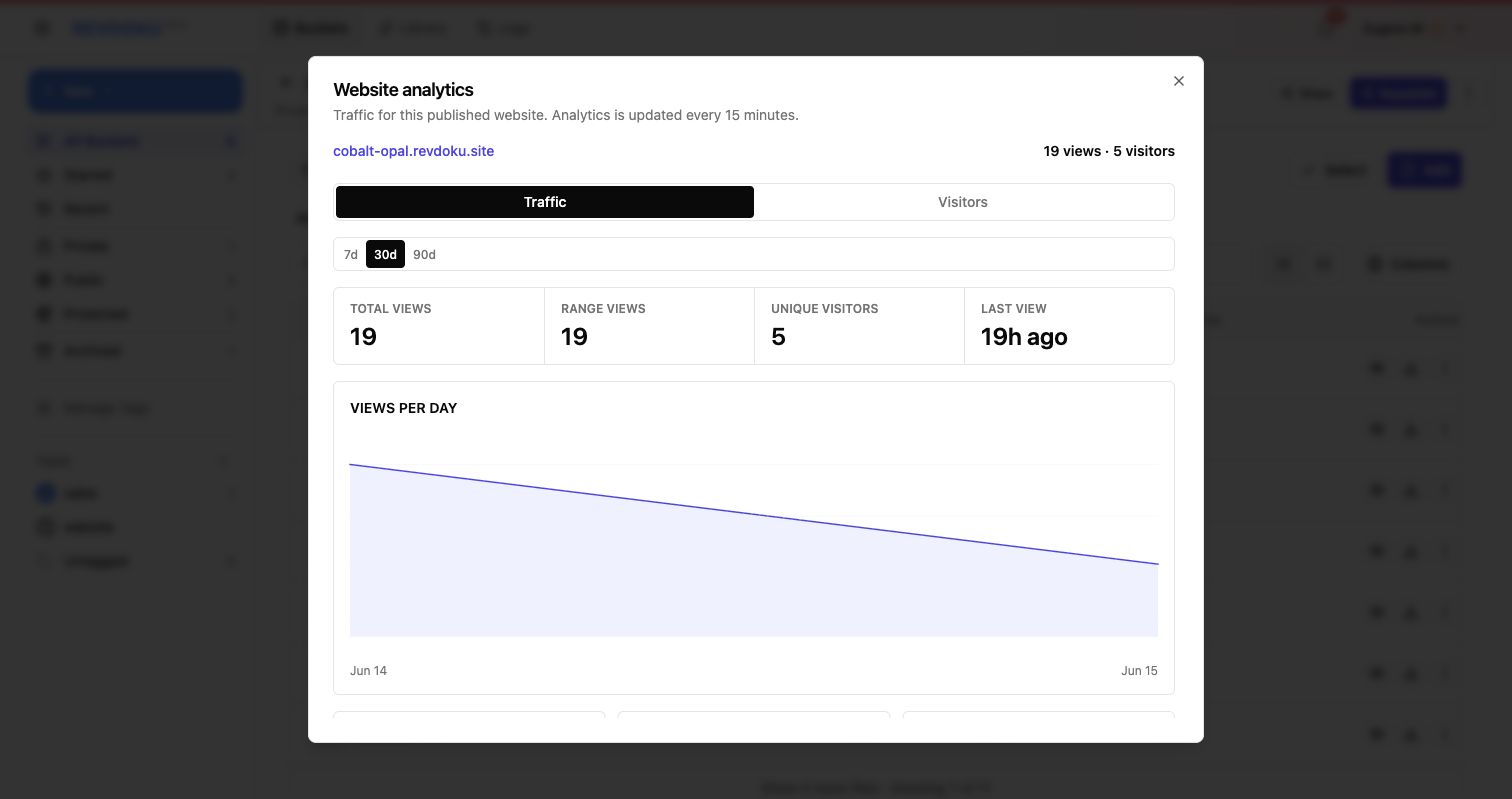
From a protected bucket, click the view-count detail link to open website analytics. The Traffic tab shows total views, unique visitors, last view time, top pages, sources, countries, 404 paths, bot traffic, and outbound links.
2. Review password-only visitors
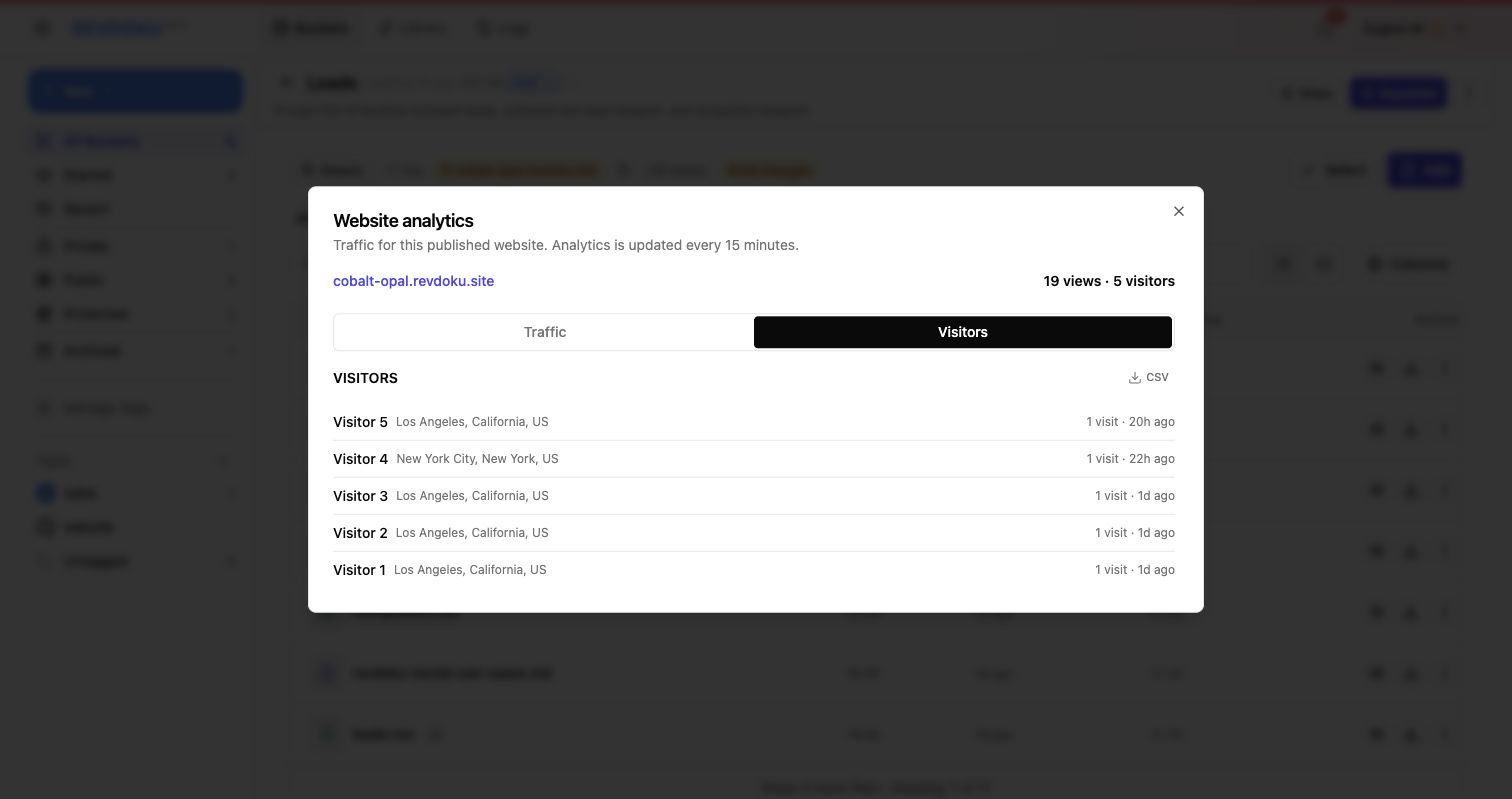
For a password-only site, Revdoku groups visitors anonymously and shows visit time plus approximate location. This is useful when you need activity history but not named visitor attribution.
3. Review email-gated traffic
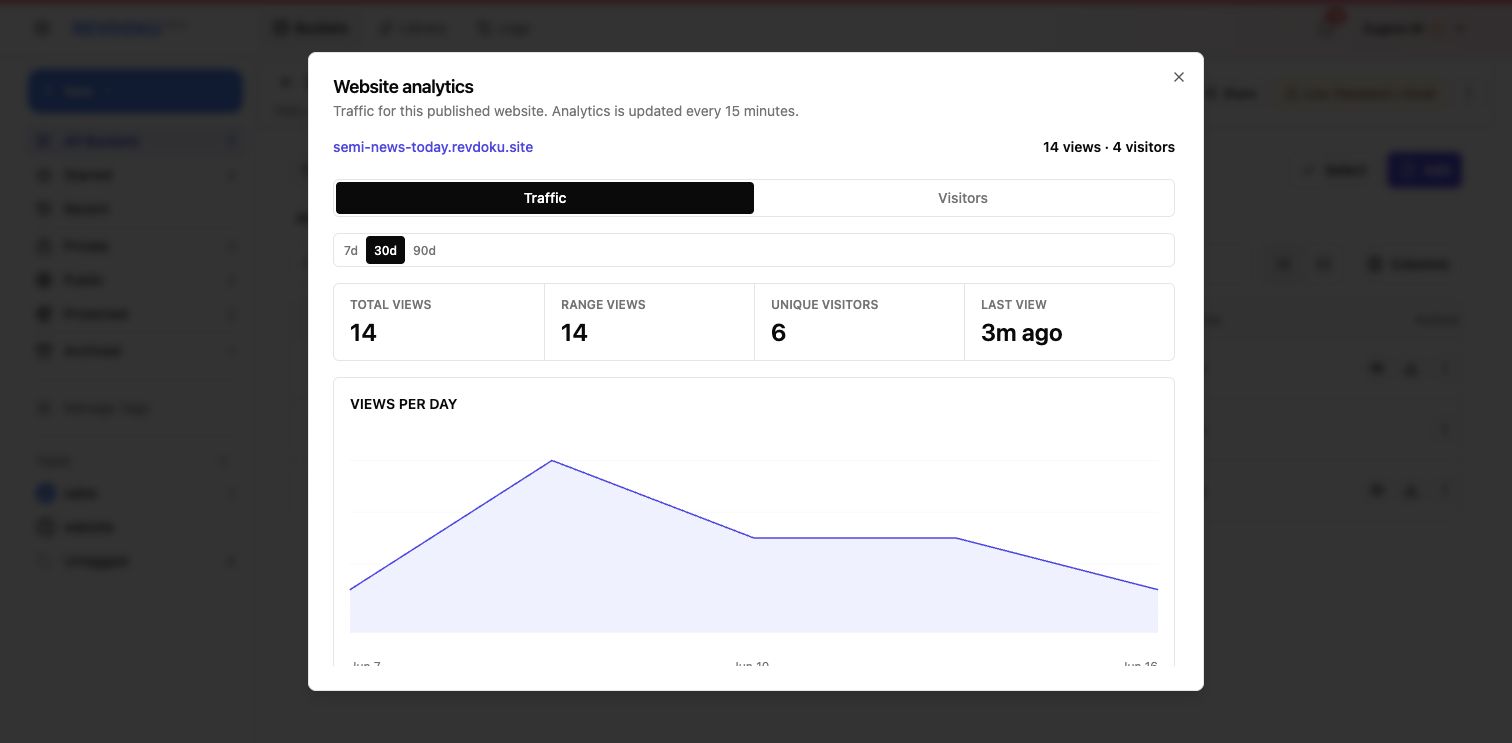
For a password plus email site, the Traffic tab still shows the aggregate website picture: views, visitors, top pages, sources, countries, and errors.
4. See visitor identity
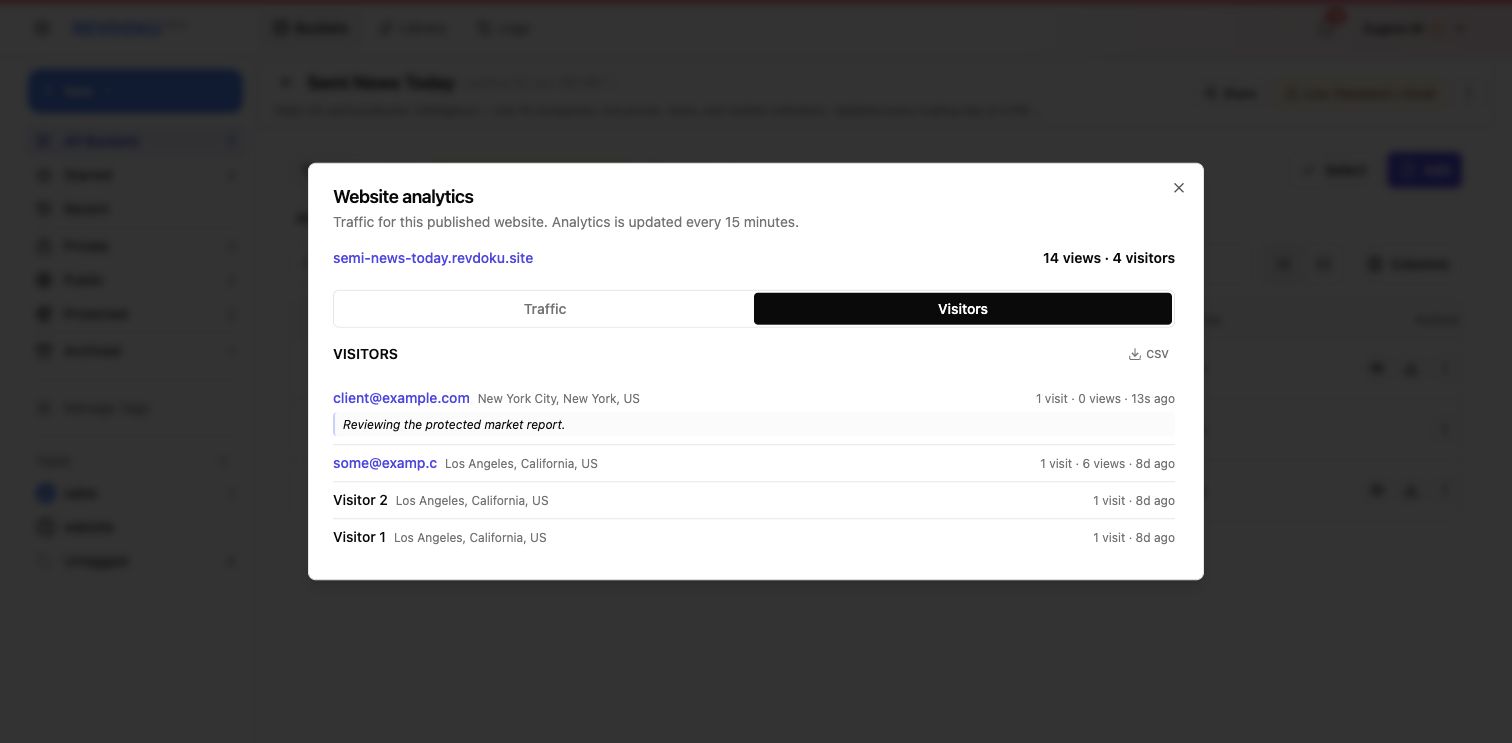
On the Visitors tab for a password plus email site, Revdoku associates access with the submitted email address, approximate location, visit timing, and optional visitor comment. Pair this with Traffic top pages to explain who came in and what content was active.
5. Ask ChatGPT to summarize analytics
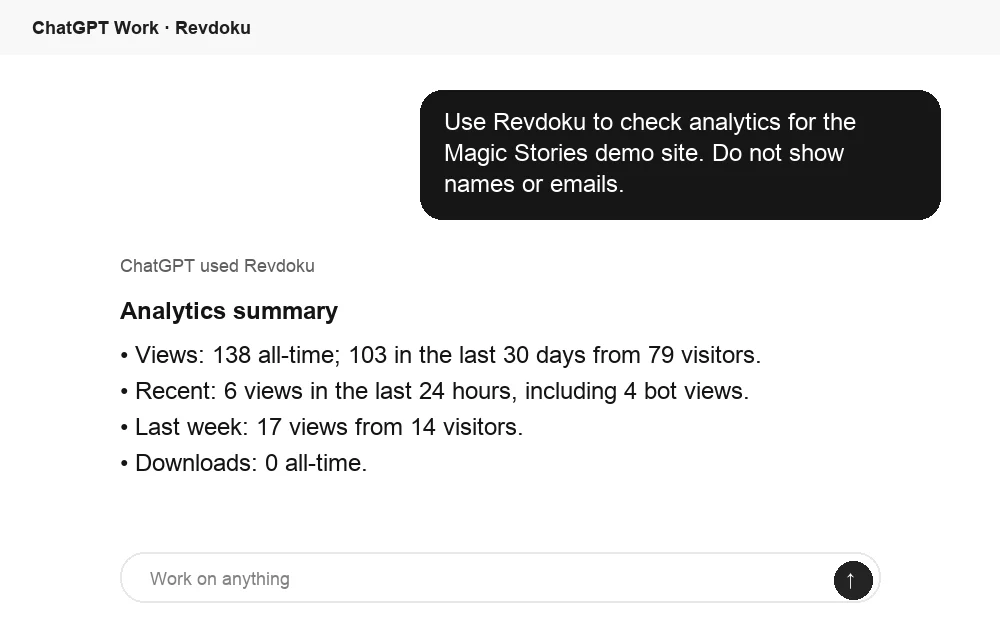
When ChatGPT is connected to Revdoku, you can ask it to summarize a site’s views, recent activity, and downloads before you open the dashboard. Use that as a quick read, then inspect the Traffic and Visitors tabs for the full record.
6. The visitor opens the protected site
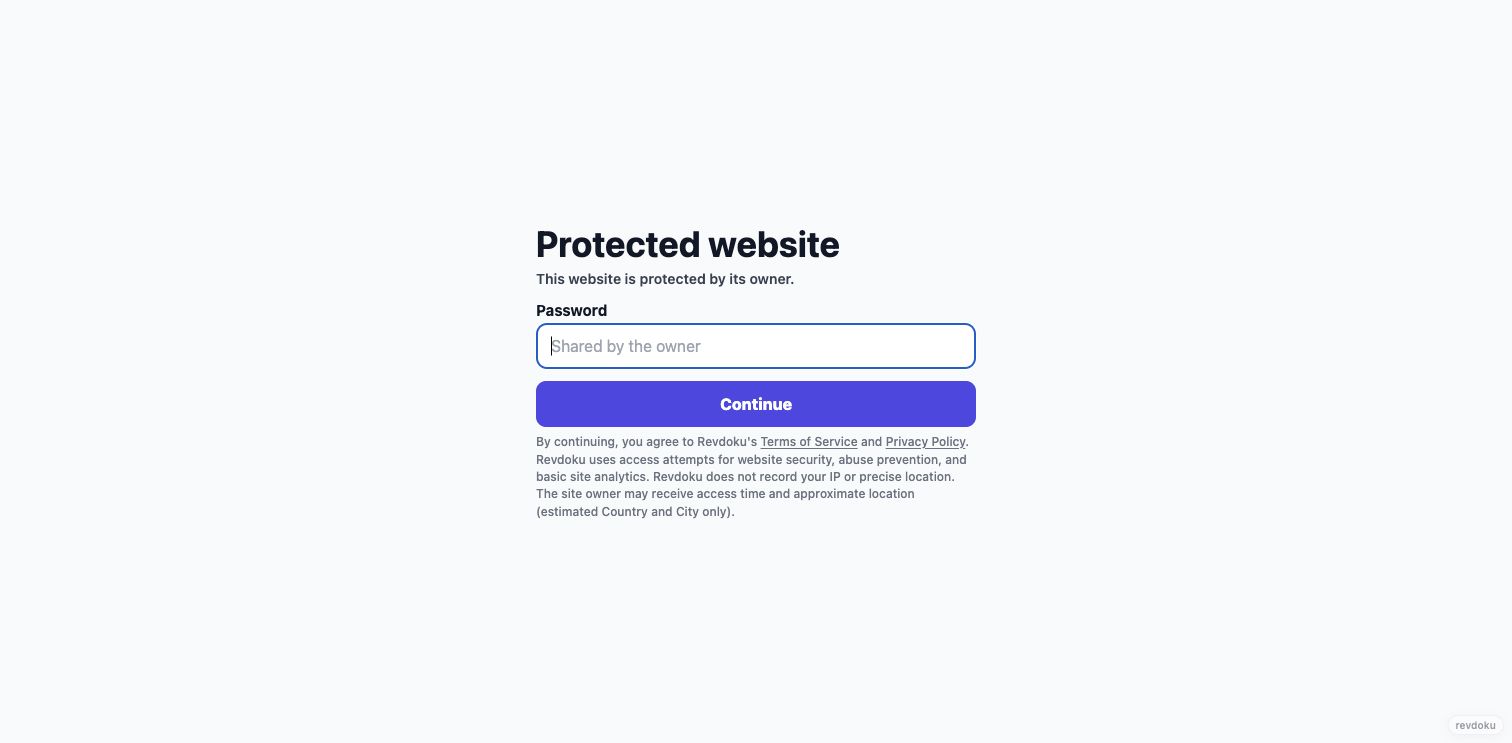
When a visitor opens a password-protected Revdoku site, they see a password page before any files are exposed. Revdoku also explains that the owner may receive access time and approximate location for analytics and security.
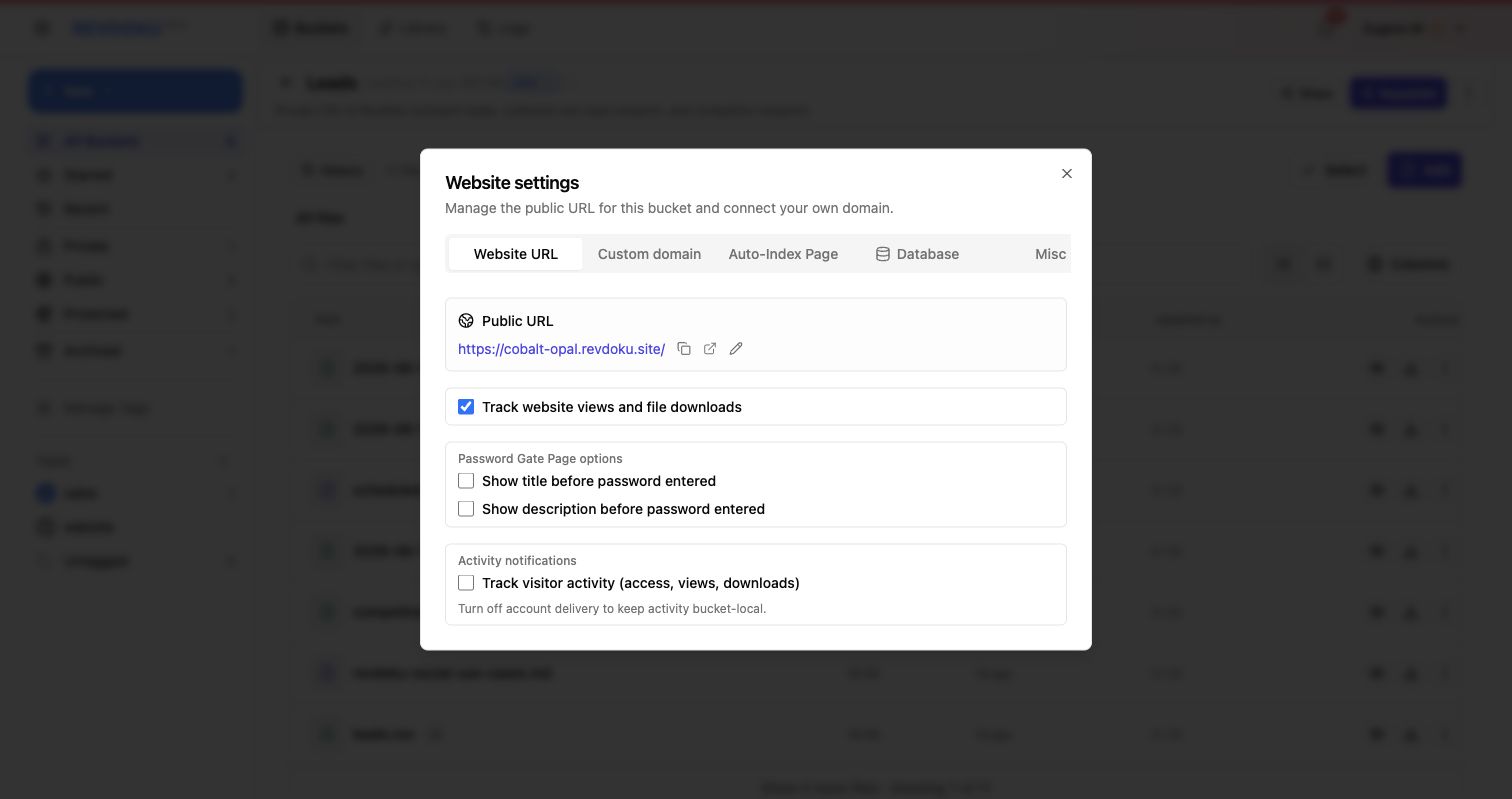
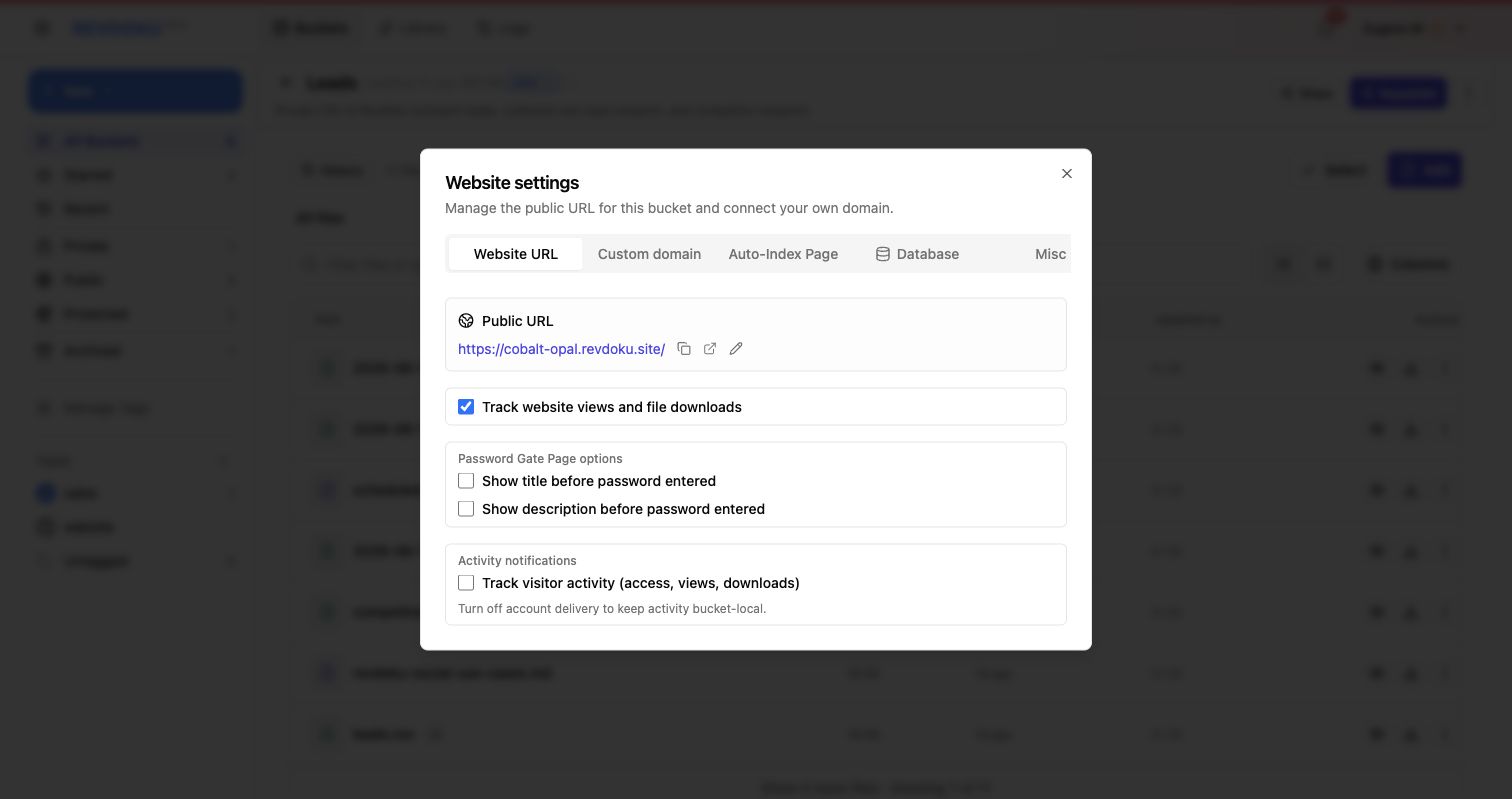
Visitor activity tracking is configured in Website Settings on the Website URL tab.
For higher-value files, use password plus email so the visitor identifies themselves before opening the site.
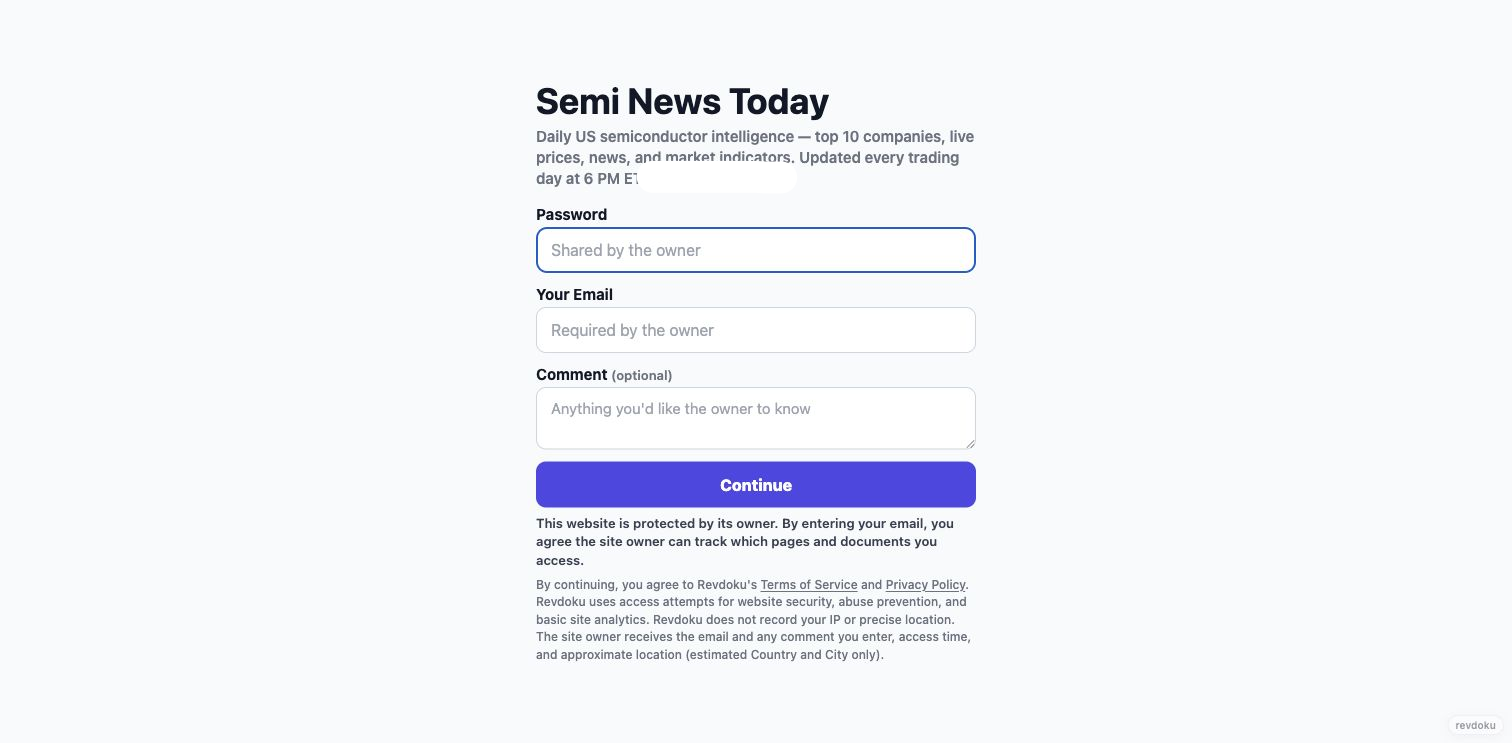
7. The visitor browses the protected file index
After entering the password, the visitor lands on a simple file index. You can share CSVs, Markdown documents, generated reports, folders, and other static files from the bucket.
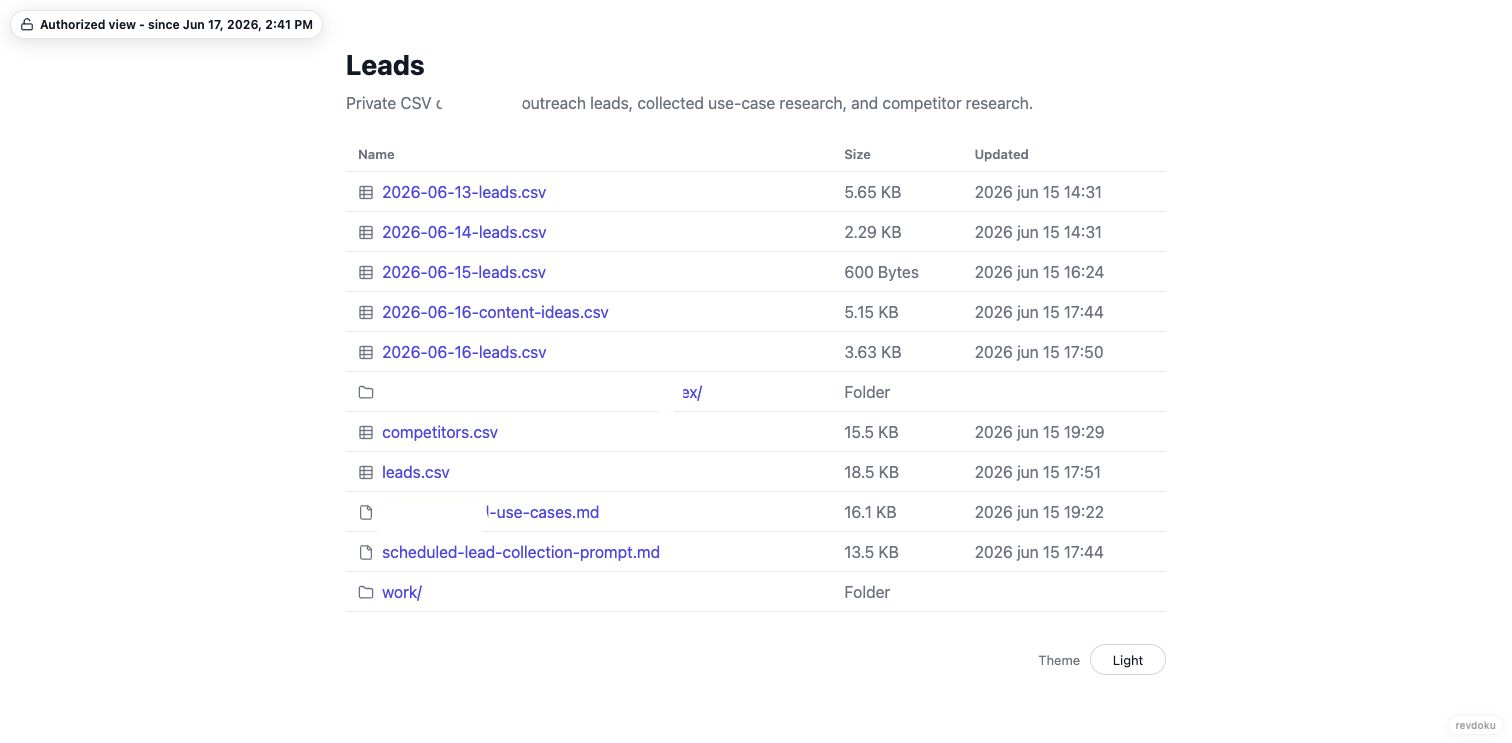
8. The visitor previews a CSV
CSV files open in a protected preview modal. Visitors can inspect the table in the browser, open the raw file, download it, move between files, or switch to fullscreen.
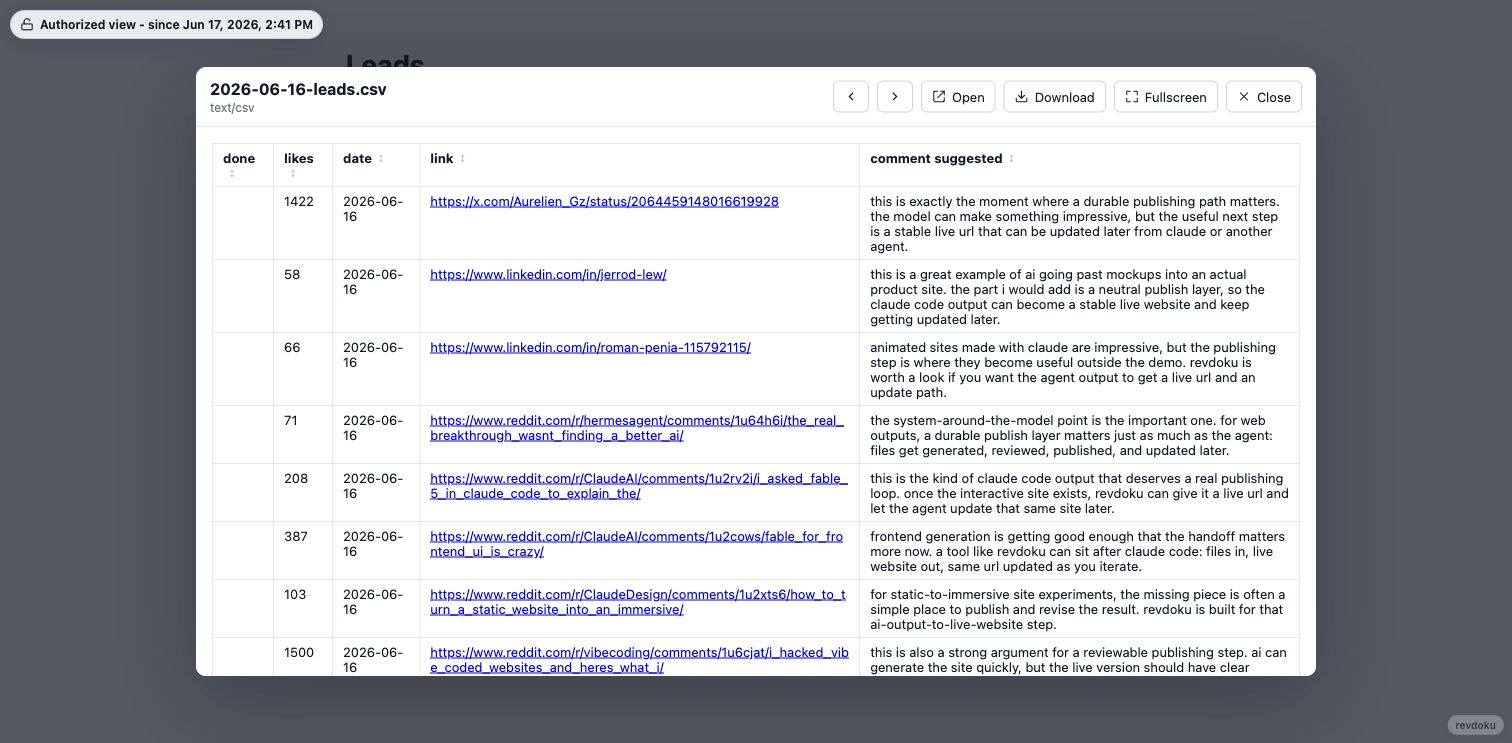
9. The visitor previews a text document
Markdown and text-like documents also open in the protected preview modal, with the same open, download, previous/next, and fullscreen controls.
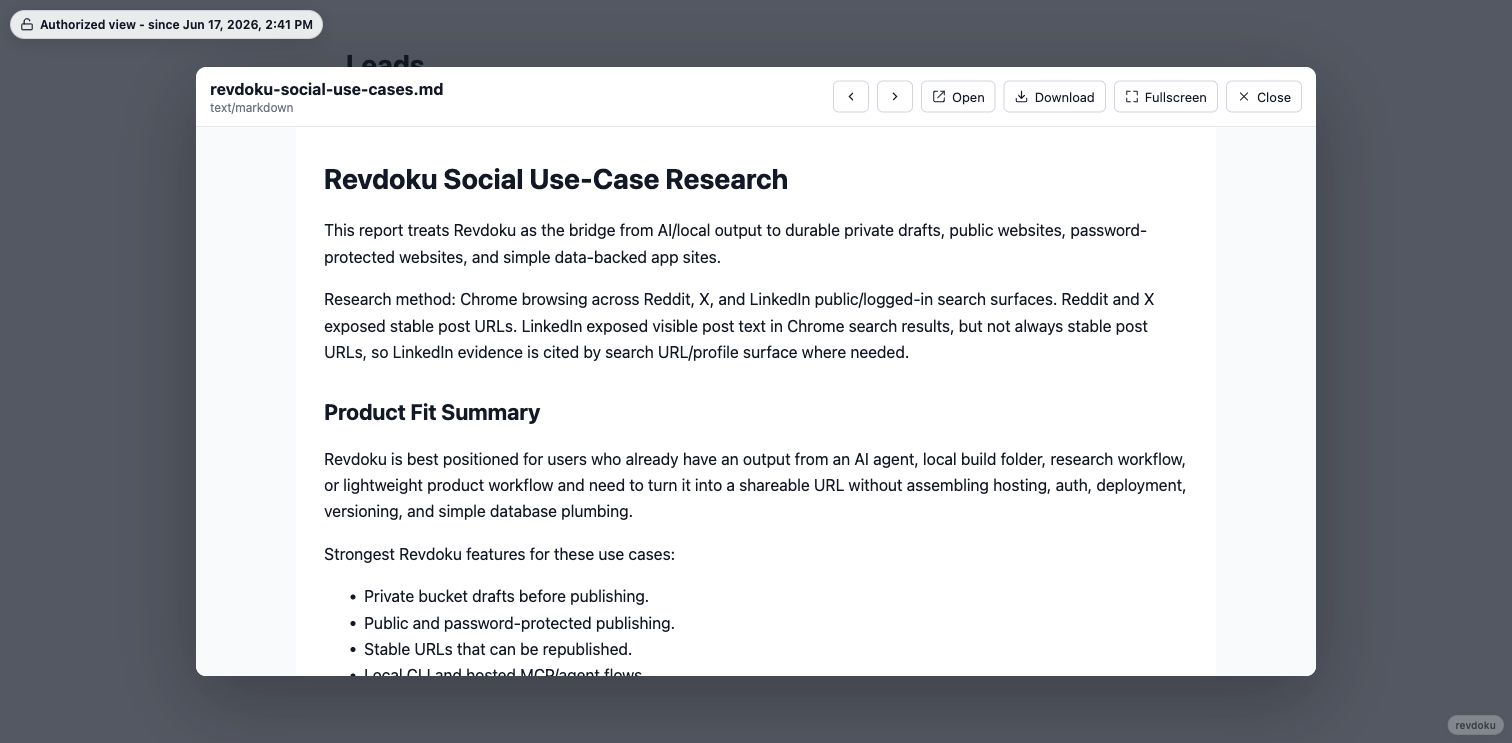
10. Configure activity visibility
Use Website Settings when you need to review or enable access, view, and download tracking for a protected site. The Visitors and Traffic tabs become the durable activity record after analytics updates.
Share files without sending attachments
Protected file sharing is strongest for client reports, lead lists, board updates, investor materials, AI-generated research packs, and project handoff bundles. Publish a folder of files as a protected website, give visitors a simple password instead of email attachments, let them preview or download files in the browser, and use password plus email when you need visitor-level attribution. Create a free Revdoku account to share your first protected file bundle.
Publish & Update Websites
For FREE, right from your AI app:
Forms with notifications, analytics, and your own domain included.
Review the prompt
Join 100+ people who recently signed up