Turn Off Codex CLI Sparks with whimsy = false
Turn off Codex sparks in the terminal with whimsy = false
TL;DR: To disable Codex sparks, the faint sparkling CLI input background, set whimsy = false under [tui] in ~/.codex/config.toml, save, and restart Codex. Minimal configuration:
[tui]
whimsy = false
For a plain input background, use the tested setting below. Edit just one configuration value.
- Observed environment: macOS with Codex CLI 0.154.0.
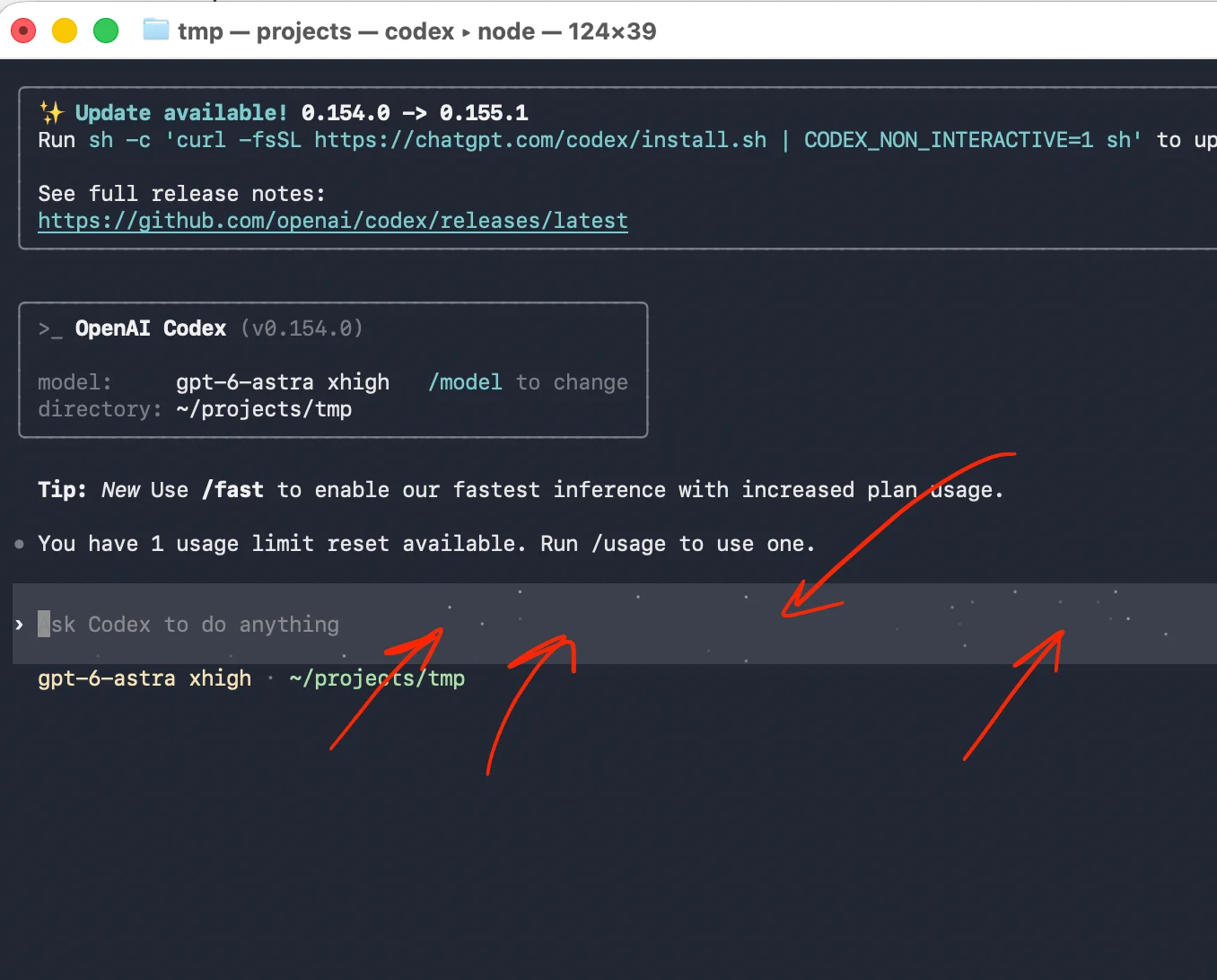
The before, configuration, and after screenshots document the user’s tested fix. Other versions remain unverified.
Before: red arrows mark the faint starry input background.
Open the Codex configuration in Vi
-
Open a separate terminal window or tab. Use the shell prompt; do not type shell or editor commands into the Codex prompt.
-
Run the following command and press Enter. It opens the configuration file in Vi:
vi ~/.codex/config.toml -
Press
ito enter insert mode for editing.Use the arrow keys to find an existing
[tui]heading. Avoid typing over existing text while navigating.
OpenAI’s configuration reference confirms the user configuration location and describes TUI options. It does not currently document whimsy; the user’s observed result here supports this fix.
Set Codex whimsy = false inside [tui]
Settings belong to the section heading above them. Put whimsy = false on its own line within [tui], before the next [section] heading.
- If
[tui]exists, add the setting there, preserving its other keys. - If
whimsyalready exists within[tui], set it tofalsewithout duplicating it. - If
[tui]does not exist, append the minimal two-line block above. Do not create a second[tui]section.
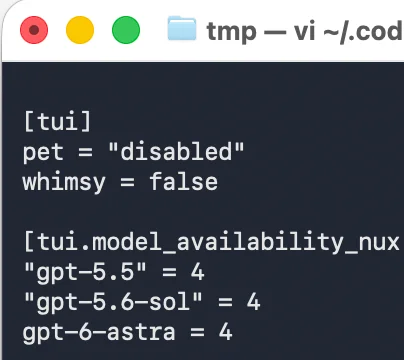
Configuration: whimsy = false appears under [tui], before [tui.model_availability_nux].
Only whimsy is required. The visible pet = "disabled" entry and [tui.model_availability_nux] section are existing screenshot settings, not instructions to copy. Leave other settings unchanged.
Save and restart Codex to remove the sparks
-
Press
Escto leave insert mode. -
Type a colon (
:). On a US keyboard, hold Shift and press semicolon (;). Then typewqand press Enter. The complete command is:wq:wwrites the file, andqquits Vi. -
Close the existing Codex session normally. At the shell prompt, run:
codex
The restarted session should show the input background without sparks, as observed below.
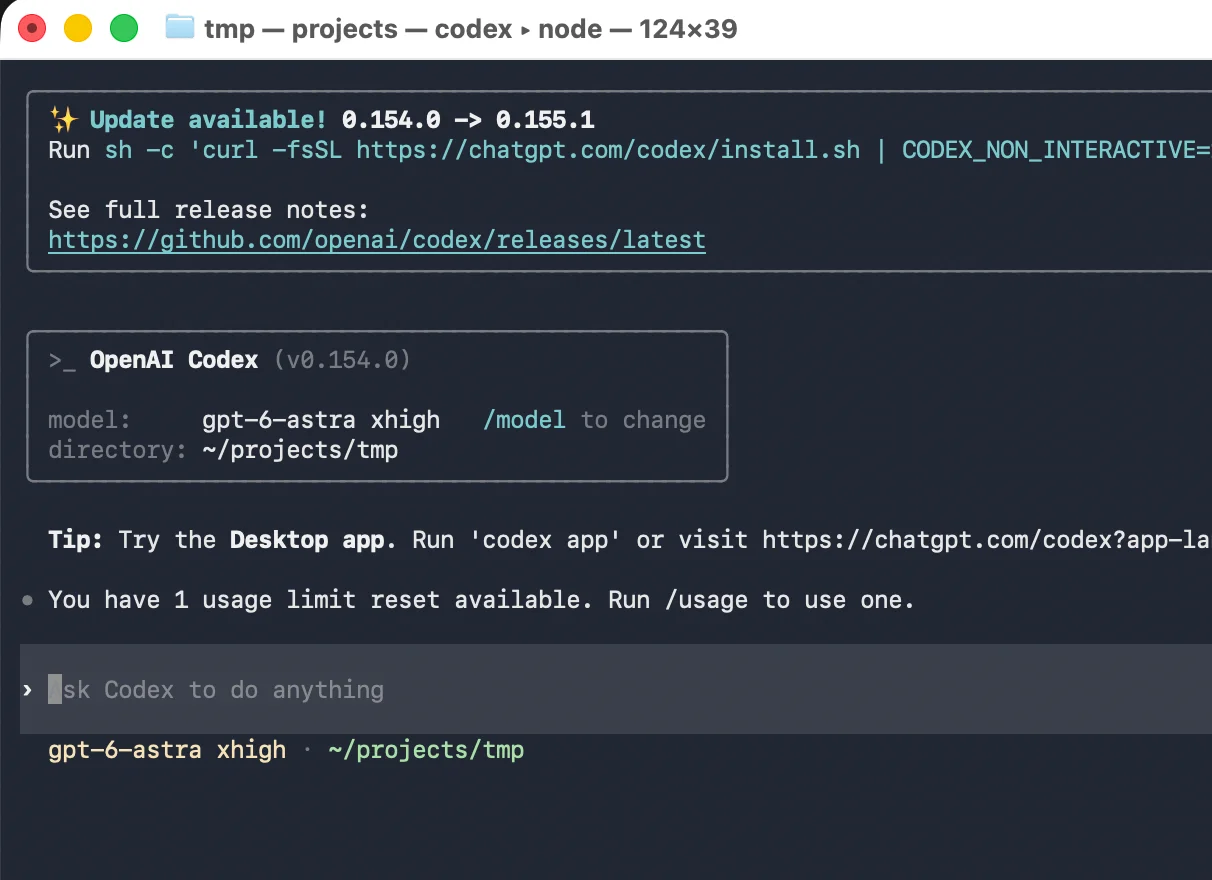
After: the configuration change and restart removed the sparkling background.
If Codex terminal sparkles remain
Check these details before making another change:
| Item | What to check | Why it matters |
|---|---|---|
| Restart | Close the existing session and rerun codex. |
The observed fix includes a restart. |
| Section | Place the setting under [tui], before [tui.model_availability_nux] or another heading. |
A later heading changes its section. |
| Value | Use whimsy = false, with unquoted false. |
TOML needs a boolean value here. |
| Saved file | Reopen ~/.codex/config.toml and confirm the line remains. |
Unsaved edits cannot affect the next launch. |
Check placement and saving carefully. Once those match the example, restart Codex and compare the input box with the final screenshot.
Get Email address for your AI agent
- Create a cloud bucket and copy its
<unique.id>@revdokumail.comemail address. - Emails sent to this email are saved as JSON and Markdown, attachments are extracted.
- Connect AI agents to read and manage saved emails and files via the API, CLI, MCP, or Skill.
Frequently Asked Questions
How do I turn off the sparkling Codex input background?
Set whimsy = false inside the [tui] section of ~/.codex/config.toml. Save the file, close the current Codex session, and launch codex again from your shell.
What if my configuration already has a `[tui]` section?
Add whimsy = false to the existing section while preserving its other settings. If a whimsy entry is already present there, update it instead of adding a duplicate.
Can I put `whimsy = false` at the end of the configuration file?
Only if that position belongs to the [tui] section. A heading such as [tui.model_availability_nux] starts a different section, so place whimsy = false before that heading.
Do I need to copy the other settings shown in the screenshot?
Only the whimsy setting is required for this fix. Leave existing settings alone; the screenshot’s pet entry and [tui.model_availability_nux] section are not part of the instructions.
Where should I enter the editing and restart commands?
Run vi ~/.codex/config.toml at a shell prompt in a separate terminal tab or window. After saving and closing the existing Codex session, run codex at the shell prompt to restart it.
What should I check if the sparks remain after restarting?
Reopen ~/.codex/config.toml and confirm that your edit was saved inside [tui]. Use the unquoted boolean false, and make sure you fully closed the previous Codex session before launching a new one.
Is this setting verified across all Codex versions and operating systems?
The article documents a successful test on macOS with Codex CLI 0.154.0. Other environments remain unverified, and the configuration reference cited in the article did not document whimsy at publication.