How to Give Your Grok Bot an Email Inbox
Your Grok Bot can claim its own email address in a minute, and for sign-ups and verification codes that is often enough. When the Bot handles mail for several clients, or your team and other AI apps need the same messages, give it a Revdoku mailbox as well. This guide covers both ways to give Grok Bot an email inbox, with the prompts to use.
Does Grok Bot have its own email address?
Yes. A Grok Bot can claim an address on mail.grokbot.com, for example yourname@mail.grokbot.com. You can claim it in three ways:
- Ask your Bot: “Get yourself an email address.” It checks the name and shows an approval card. Nothing is claimed until you approve.
- On desktop, open Connect apps, choose Email, then Create address.
- Tag @bot on X and ask for an inbox, as 9to5Mac describes.
With that address, the Bot can:
- receive, read and search mail;
- sign up for services and pick up a verification code or link, with your OK;
- collect receipts, newsletters and reports and summarize them;
- draft emails and replies for you to approve;
- start a routine when mail arrives from a sender or domain you choose.
A few rules from Grok Bot’s email help page shape how you use it:
| Rule | What it means for you |
|---|---|
| One address per account | All your Bots share it. You cannot rename or delete it. |
| Every send needs your approval | You see the draft and press Send. Routines leave drafts. |
| No inbox view | You check mail by asking the Bot. There are no new-mail notifications. |
| No team address | Team Bots have no shared address, and the address does not work in Slack threads. |
| Tied to your account | Deleting your Grok Bot account deletes the mail and attachments. |
How do I send an email with Grok Bot?
Ask in the chat, for example: “Send an email from your inbox to anna@example.com with the subject Project brief and attach brief.pdf.” Grok Bot shows a card with the recipient, subject and body. Press Send to deliver it. The same approval step applies to replies and to drafts that routines create.
With a Revdoku mailbox connected, your Bot can also send from that mailbox:
- replies to people who emailed the mailbox;
- emails to the people on your Revdoku account, for example a morning summary for your team.
When should you add a Revdoku mailbox?
Revdoku gives AI agents email inboxes that you and your team can open too. Use it next to the Bot’s own address when you need more than one inbox or more than one reader.
| You need | Grok Bot’s own address | Revdoku mailbox |
|---|---|---|
| Separate inboxes | One address per account | A mailbox per client, project or app |
| Your own domain | @mail.grokbot.com |
Your own domain |
| People reading the same mail | Ask the Bot | Your team opens the mailbox in the dashboard |
| Other AI apps | Your Grok Bots | Claude, ChatGPT, Cursor, Codex and your own app, through MCP, the CLI or the API |
| Files next to the mail | Attachments in the Bot’s mail | Files with version history in the same mailbox |
| Mail after you leave Grok Bot | Deleted with the account | Stays in your Revdoku account |
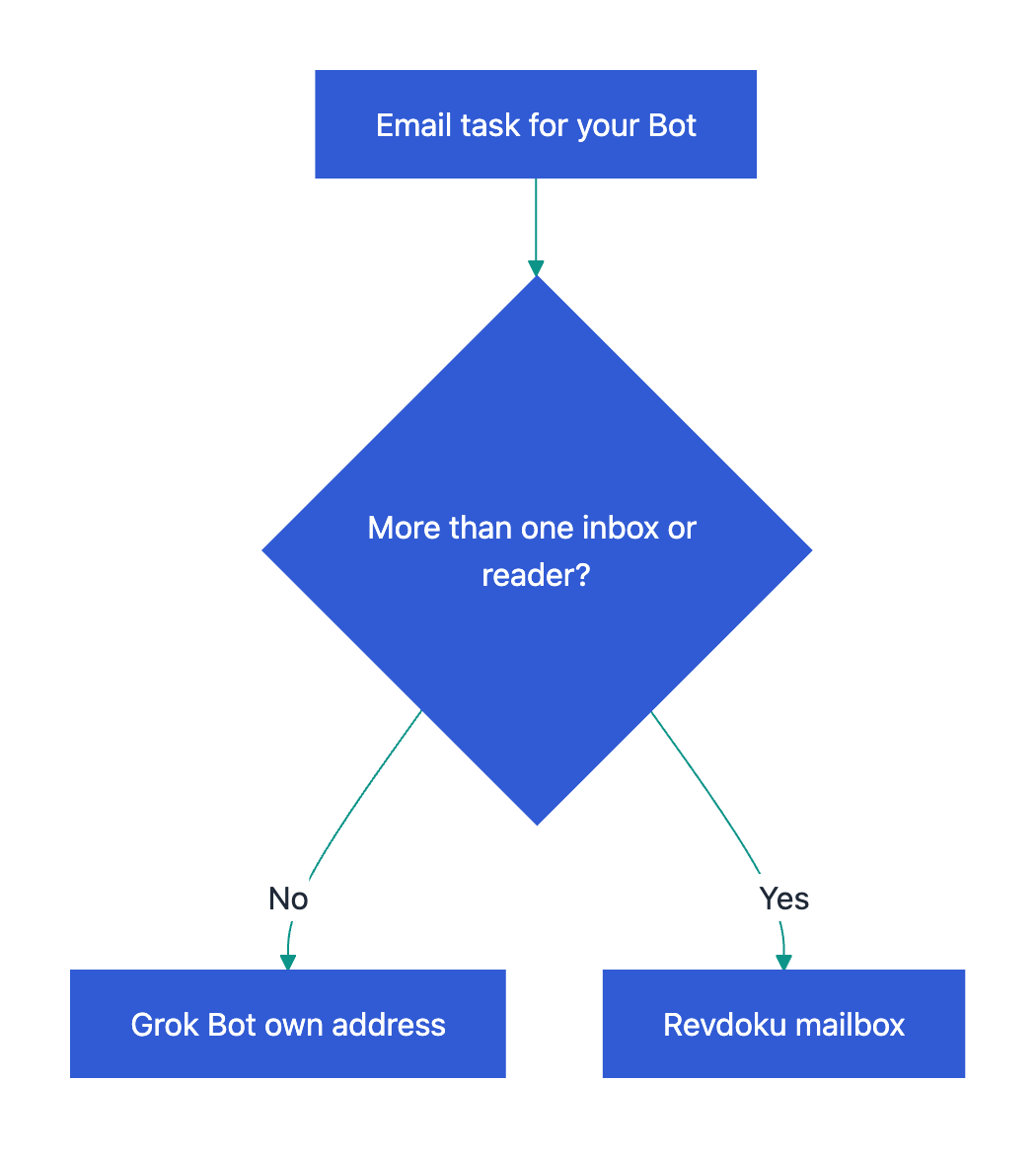
Revdoku also keeps an audit log of each email and file an agent opened, and why. You can use both inboxes: the Bot’s own address for services it signs up to, and Revdoku mailboxes for client and team mail.
Which inbox to use:
How do I connect Revdoku to Grok Bot?
Revdoku runs a hosted MCP server at https://mcp.revdoku.com. Grok Bot can add a custom MCP server from a chat message.
- Create your agent’s mailbox. Create a free mailbox. Sign up with Google, GitHub or your email.
- Add the server. In a Bot chat, send:
Add a custom MCP server called revdoku at https://mcp.revdoku.com. Confirm with Add it. - Sign in. Use the connect card to sign in to Revdoku. Pick the mailbox and choose the access level.
- Test it. Ask:
Show my Revdoku mailbox address.Send an email with an attachment to that address, then ask your Bot to read it.
Choose the access level for the job:
| Access | Choose it when |
|---|---|
| Read only | The Bot only reads saved email and files. |
| Read & write | The Bot shows the mailbox address, replies to senders or saves files. |
| Full access | The Bot creates or manages mailboxes, or deletes email. |
Connectors in Grok Bot are account-wide (Grok Bot docs), so every Bot on your account can use the Revdoku connection. See the MCP guide for the tools it adds.
Prompts to try
Show my Revdoku mailbox address.List new email in the acme mailbox and summarize each attachment.Reply to the latest email from billing@supplier.com: "Thanks, we received the invoice."Save the summary as notes/weekly-summary.md in the acme mailbox.Email me a summary of today's new mail in my Revdoku mailboxes.
Check client mail every morning with a routine
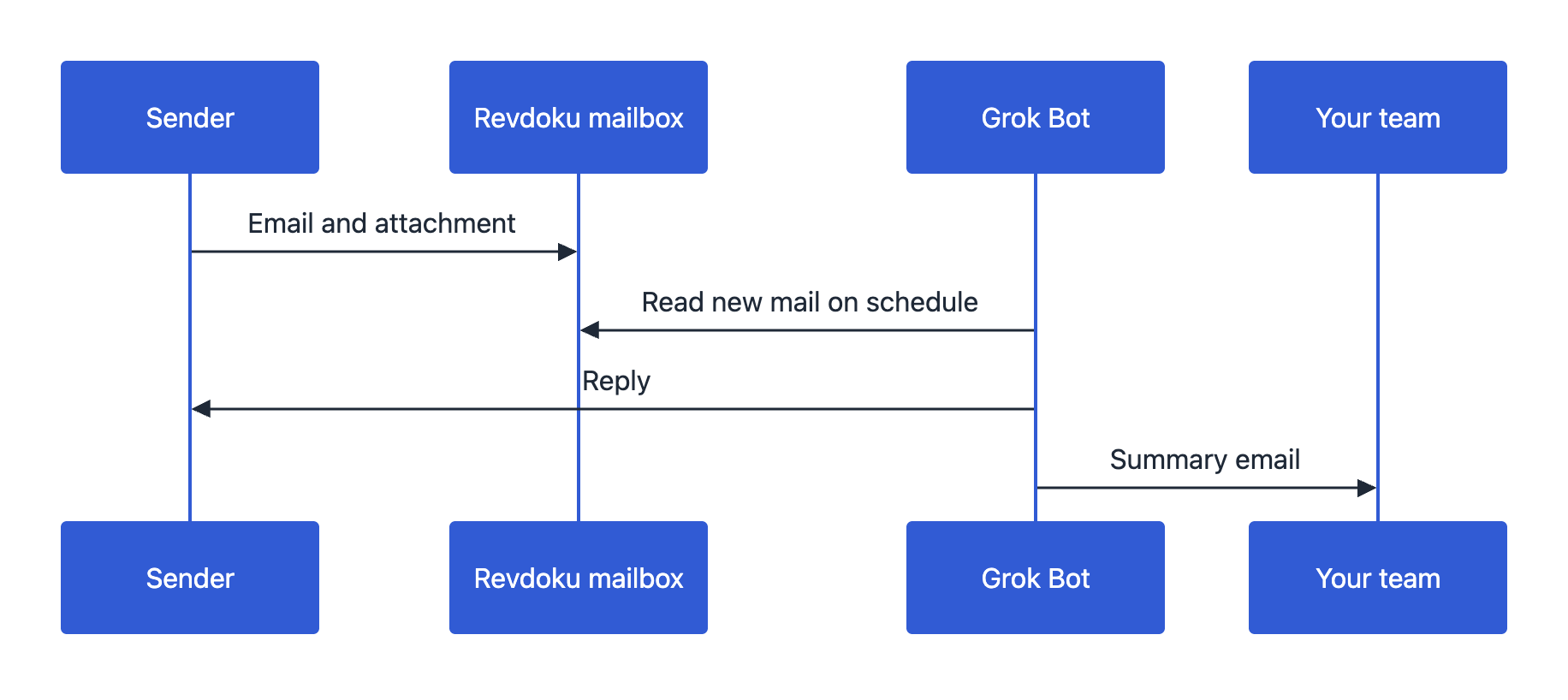
A routine runs a saved workflow on a schedule, and it keeps running when your laptop or phone is closed (Grok Bot FAQ). Routines that start on new mail work with the Bot’s own address. For a Revdoku mailbox, run the routine on a schedule:
Every weekday at 9:00, read new email in my Revdoku mailboxes. Save a short summary in each mailbox, draft replies to routine questions, and email me the summary.
Run the prompt once as a normal task before you save it as a routine, and check what the Bot does. Grok Bot stops for approval on sensitive actions, and you can add an “Ask first” rule for sending.
Morning routine with a Revdoku mailbox:
Does this work with Grok Build?
Yes. Grok Build, xAI’s terminal coding agent, can use the same MCP server:
grok mcp add --transport http revdoku https://mcp.revdoku.comGrok Build opens a browser sign-in the first time it uses the server (Grok Build MCP docs). You can also install the Revdoku skill for coding agents with npx skills add revdoku/revdoku --skill revdoku -g.
Free email addresses
for your AI agents
Each agent gets an address like myagent.x7k2@revdokumail.com. It can receive emails, send replies and store files.
- 3 free mailboxes, each with its own address
- 3,000 incoming and 500 sent emails a month
- 3 GB of storage for attachments and files
- Virus, malware, spam and prompt-injection filter
- Read and reply through API, MCP or CLI
You do not need a card.
Frequently Asked Questions
Can Grok Bot have more than one email address?
Grok Bot’s own email gives your account one mail.grokbot.com address, shared by all your Bots. With Revdoku you can create a mailbox for each client, project or app and give the Bot access only to the ones it needs.
Can I use my own domain for Grok Bot email?
Grok Bot’s built-in addresses end in @mail.grokbot.com. On a paid Revdoku plan, your mailboxes can use your own domain, such as agent@yourcompany.com, and Grok Bot reads them through the Revdoku connection.
Can Grok Bot send email without my approval?
Not from its own address. Every send from mail.grokbot.com needs you to press Send, and routines leave drafts. For connected tools such as Revdoku, Grok Bot asks for approval based on the action’s risk and your rules, and you can add an “Ask first” rule for sending.
Who can a Revdoku mailbox send email to?
A Bot with Read & write access can reply to people who emailed the mailbox. It can also email the people on your Revdoku account, for example to send your team a daily summary.
Can Claude or ChatGPT read the same mailbox as my Grok Bot?
Yes. Connect each AI app to Revdoku with its own sign-in and give it access to the same mailbox. The audit log shows which app opened which email or file.
Where does Revdoku store email and files?
In the European Union by default. Stored data is encrypted with AES-256, and data in transit is protected by TLS. See the security page for details.
What is the difference between Grok Bot and Grok?
Grok Bot runs always-on Bots on a cloud computer and reaches tools through connectors. Grok chat on grok.com adds connectors at grok.com/connectors. See Email Inbox for Grok to connect Revdoku to Grok chat.